Installing PostgreSQL 12 on Windows
Introduction
In this article you can study the installation of PostgreSQL 12 on Windows
Download
At the time of writing the article, versions for
Windows
are provided through the company
EDB
Download link
This article uses version 12.14.1
Installation
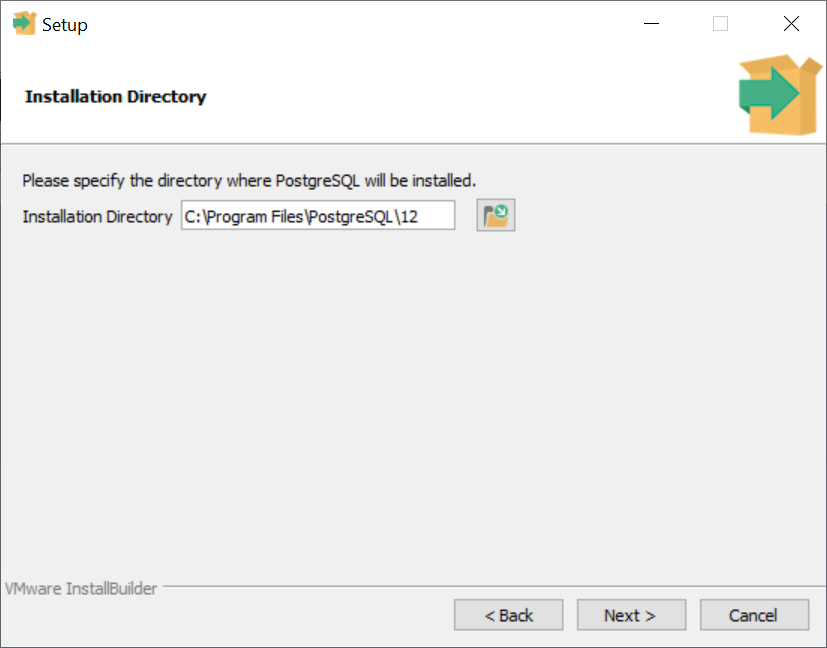
12
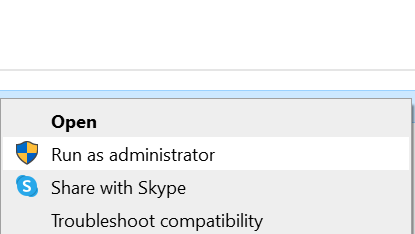
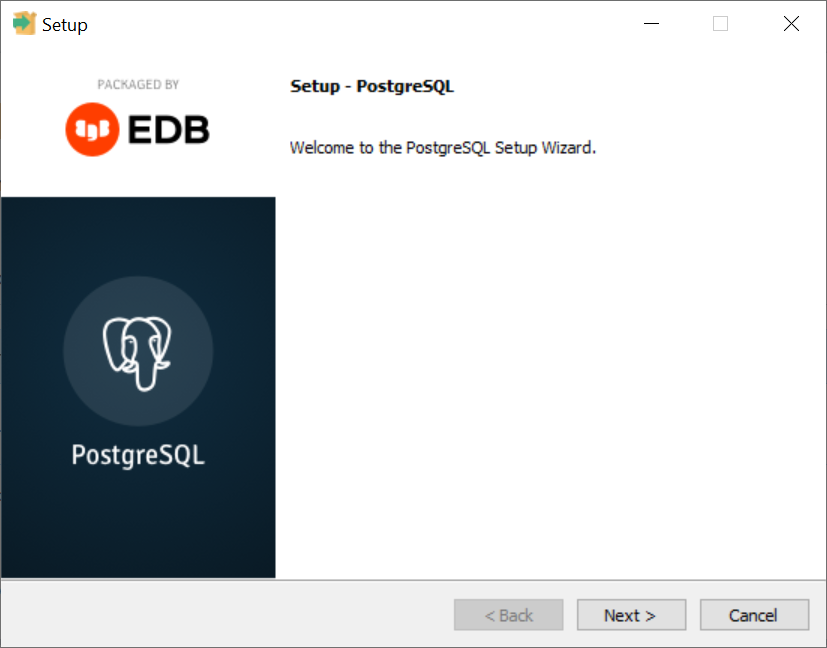
Run the installer file postgresql-12.14-1-windows-x64.exe with administrator privileges
Choose Run as administrator
https://aredel.com
Next >
https://aredel.com
Next >
https://aredel.com
Next >
https://aredel.com
Choose the directory for the data. For working with a small amount of data you can leave it unchanged. If you expect a lot of data, it is better to allocate a separate disk for it. then click Next >
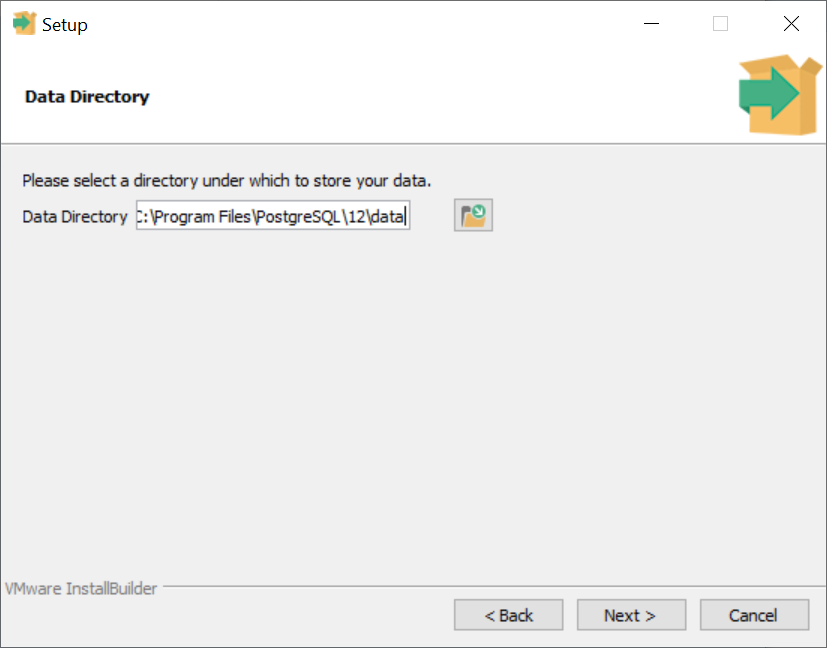
https://aredel.com
Enter the password for the server
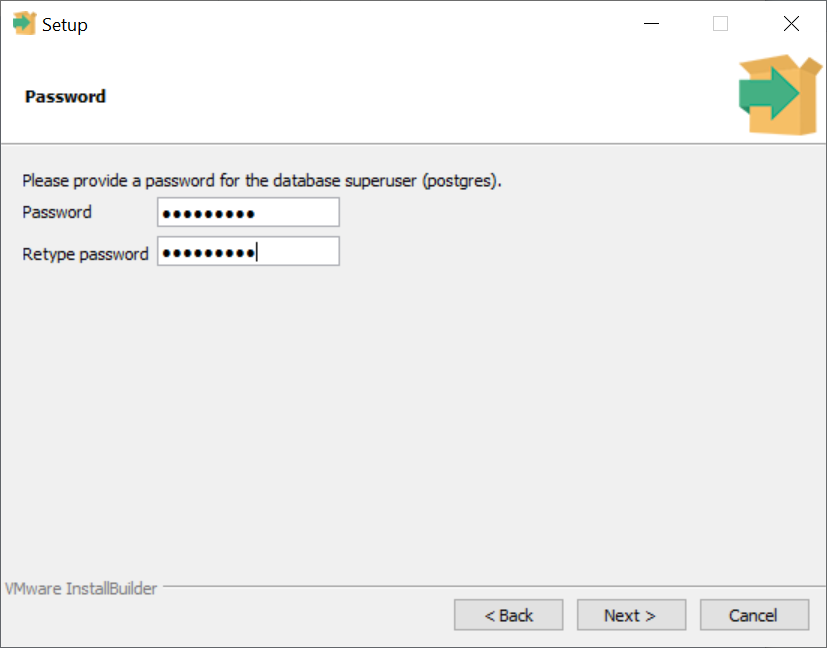
https://aredel.com
Choose the port
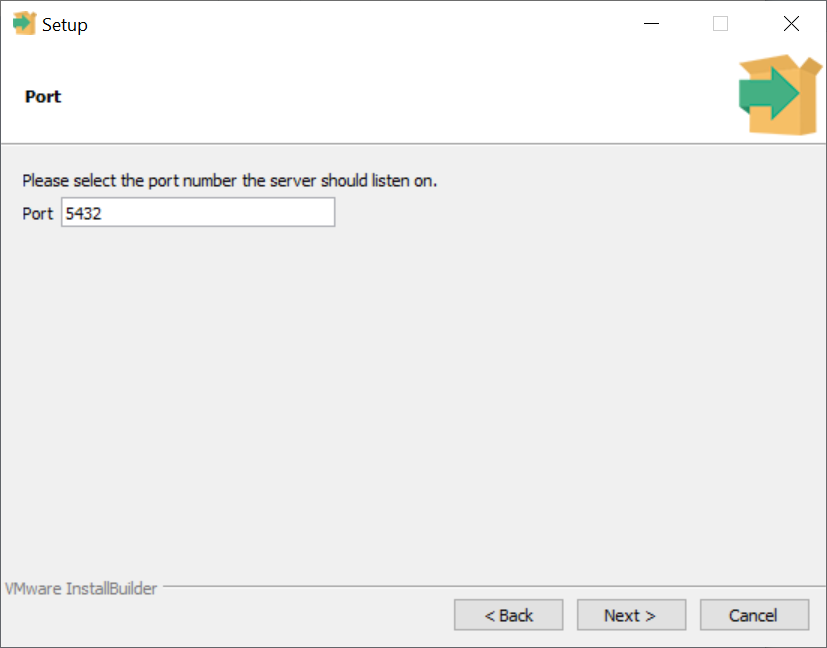
https://aredel.com
Choose the Locale
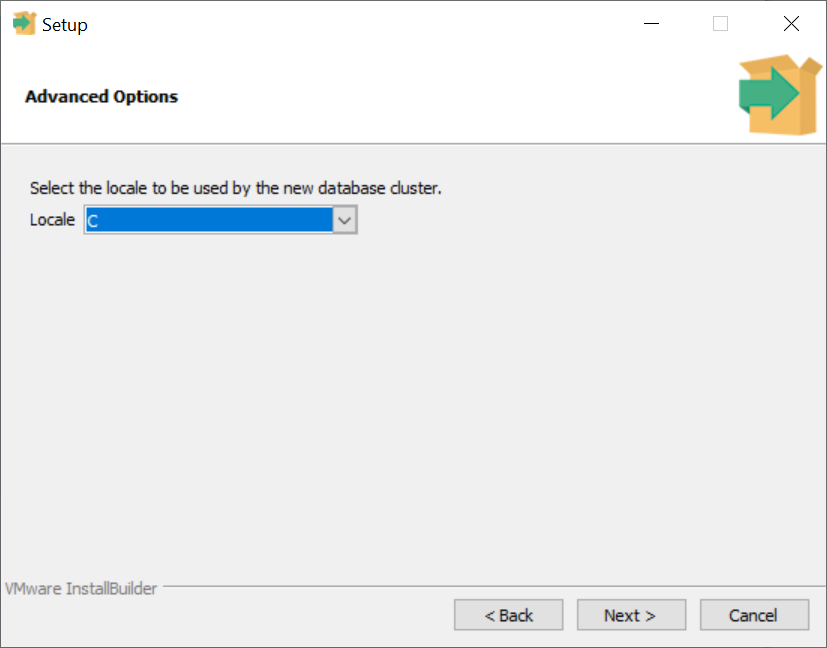
https://aredel.com
Next >
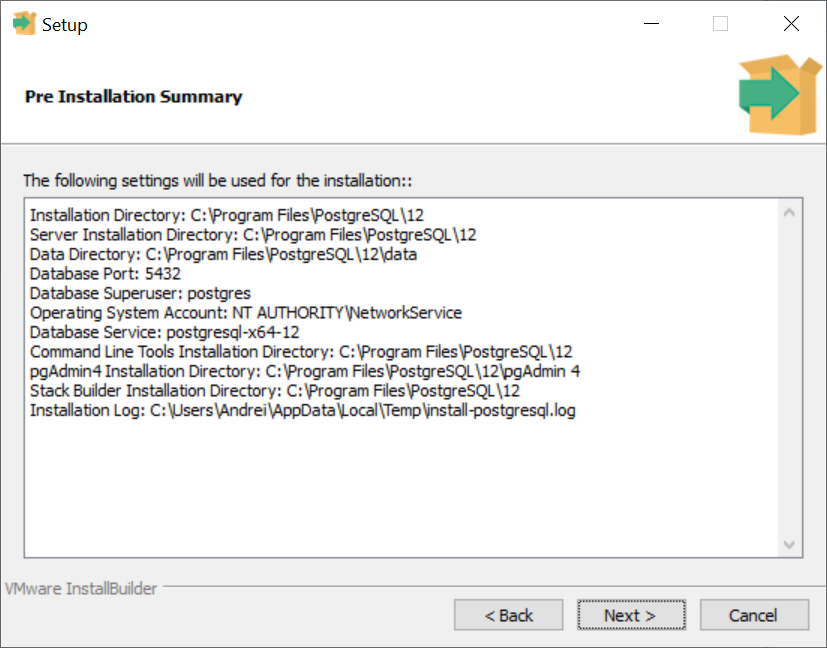
https://aredel.com
Next >
https://aredel.com
Wait for the installation to finish
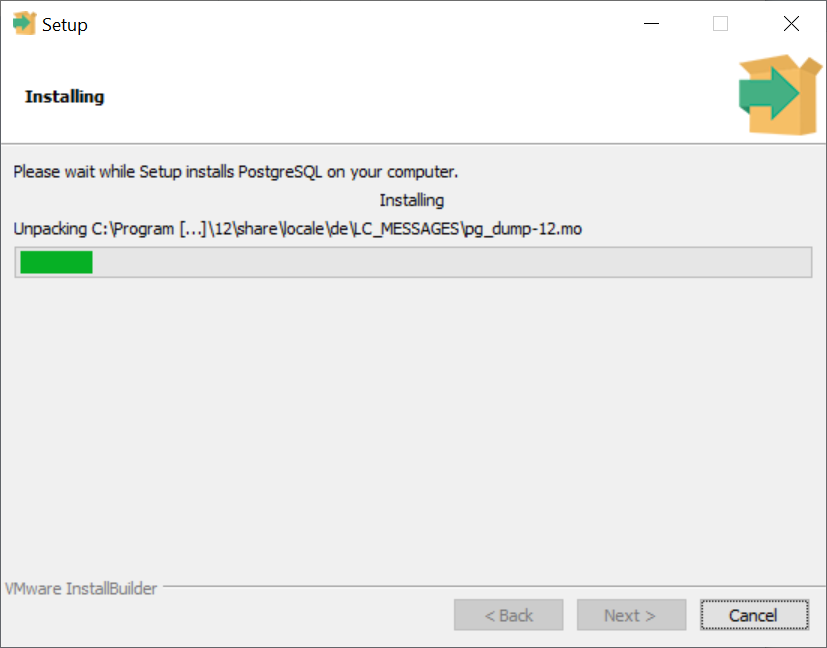
https://aredel.com
PostgreSQL 12
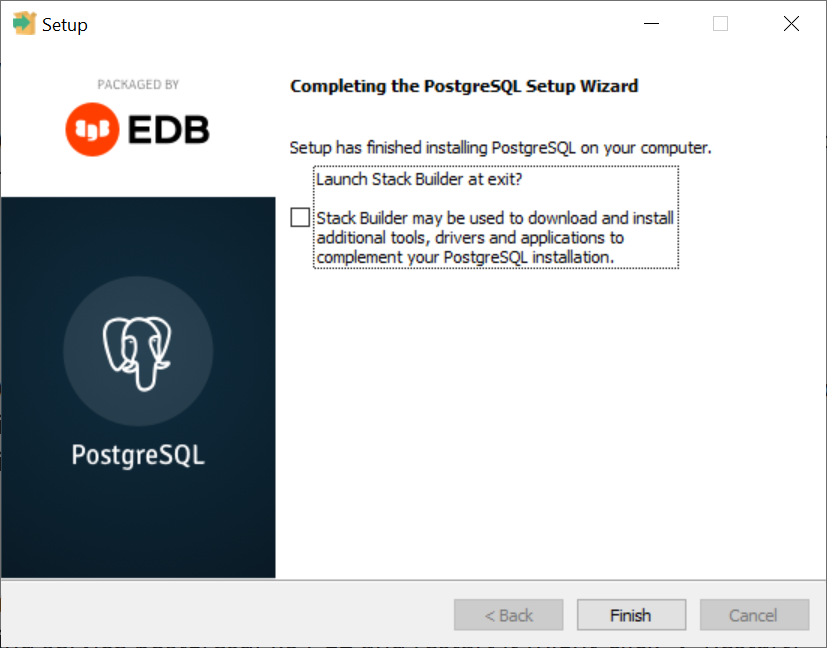
https://aredel.com
Check the version
To check the version of the installed PostgreSQL, go to
C:\Program Files\PostgreSQL\12\bin
And run
.\psql -V
psql (PostgreSQL) 12.8
Post-installation setup
Go to the directory that you specified as the Data Directory and edit the files there pg_hba.conf
host all all 0.0.0.0/0 md5 host all all ::0/0 md5
And postgresql.conf
listen_addresses = '*'
Restart Postgres as follows:
Open
Control Panel → Administrative tools → Services
Find there postgresql-x64-12 right-click and choose Restart

Restarting PostgreSQL
Add Postgres to PATH
Several examples of adding
the path to psql to PATH.
In my case
psql.exe
is in the folder C:\Program Files\PostgreSQL\12\bin
In
WSL
PATH=$PATH:/mnt/c/Program\ Files/PostgreSQL/12/bin
In Git Bash
PATH=$PATH:/c/Program\ Files/PostgreSQL/12/bin
In PowerShell you can check whether the path to Postgres exists with Select-String
echo $Env:Path | Select-String Postgres
You can add the path to Postgres to the end of Path as follows
$Env:Path += ';C:/Program Files/PostgreSQL/12/bin'
Add to the beginning of Path
$Env:Path = ';C:/Program Files/PostgreSQL/12/bin' + $Env:Path
Article author: Andrei Olegovich


