Git Bash
Introduction
Usually git is not installed by default, so you need to install Git Bash , Tortoise Git or some other solution.


Installing Git Bash
If you work in
Windows
, you need to download git for windows
git-scm.com
In the following screenshots you will see the installation of git for windows in the case when
you want to use only GitBash and do not plan to use Tortoise Git
Download the installer file, for example Git-2.39.2-64-bit.exe , and run it by double-clicking.

Installing Git Bash

Installing Git Bash

Installing Git Bash
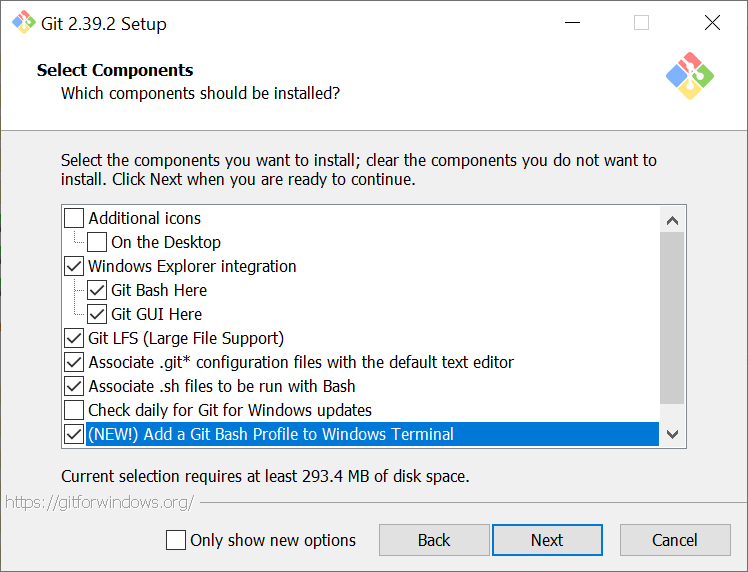
In modern versions of Git Bash there is an option to add it to Windows Terminal right during installation.
Select Add a Git Bash Profile to Windows Terminal
Installing Git Bash

Installing Git Bash

Installing Git Bash

Installing Git Bash
Now you need to make an important choice.
If you choose Tortoise Git, then all SSH keys will have to be
specified through Tortoise Git, which I did not like very much.

Installing Git Bash

Installing Git Bash

Installing Git Bash

Installing Git Bash

Installing Git Bash

Installing Git Bash

Installing Git Bash

Installing Git Bash
Alias
In Git Bash you can use aliases just as in a regular
Bash
with allowance for the specifics of
Windows
For example, this is how the alias for the VLC player will look
alias vlc="/c/Program\ Files/VideoLAN/VLC/vlc.exe"
Note the difference from
WSL
where you would need to specify #47;mnt
Also in Git Bash the command cd will take you to
/c/Users/Andrei
And not to
/home/andrei

Adding the tree, wget and other utilities to Git Bash
To extend the capabilities of Git Bash, you need to find out where it is installed.
You can do this by opening the Git Bash terminal and running
cd /
explorer .
After that, a File Explorer window should open in Windows showing the directory that contains git-bash.exe
Usually this is
C:\Program Files\Git\
Or
C:\Users\Username\AppData\Local\Programs\Git\
New utilities are added by placing .exe files such as
name.exe
into the subdirectory usr/bin
The full path to it is, for example
C:\Program Files\Git\usr\bin
or
C:\Users\Username\AppData\Local\Programs\Git\usr\bin
First you need to download the executable file into this directory, then check
whether the new command works.
If it did not work right away, try restarting Git Bash
tree
To use the command tree in Git Bash you need to download the .zip file with Binaries from the site:
https://gnuwin32.sourceforge.net/packages/tree.htm
Then you need to unpack this archive and find there (in the directory bin) the file
tree.exe
and place it into usr/bin
Examples of working with
tree
can be studied
here
wget
wget can be downloaded from the site
https://eternallybored.org/misc/wget/
and add it to the same directory we discussed in
the beginning of the topic
Other utilities will be added in the same way.
Examples of working with
wget
can be studied on the page
wget
Adding kdiff3 to Git Bash
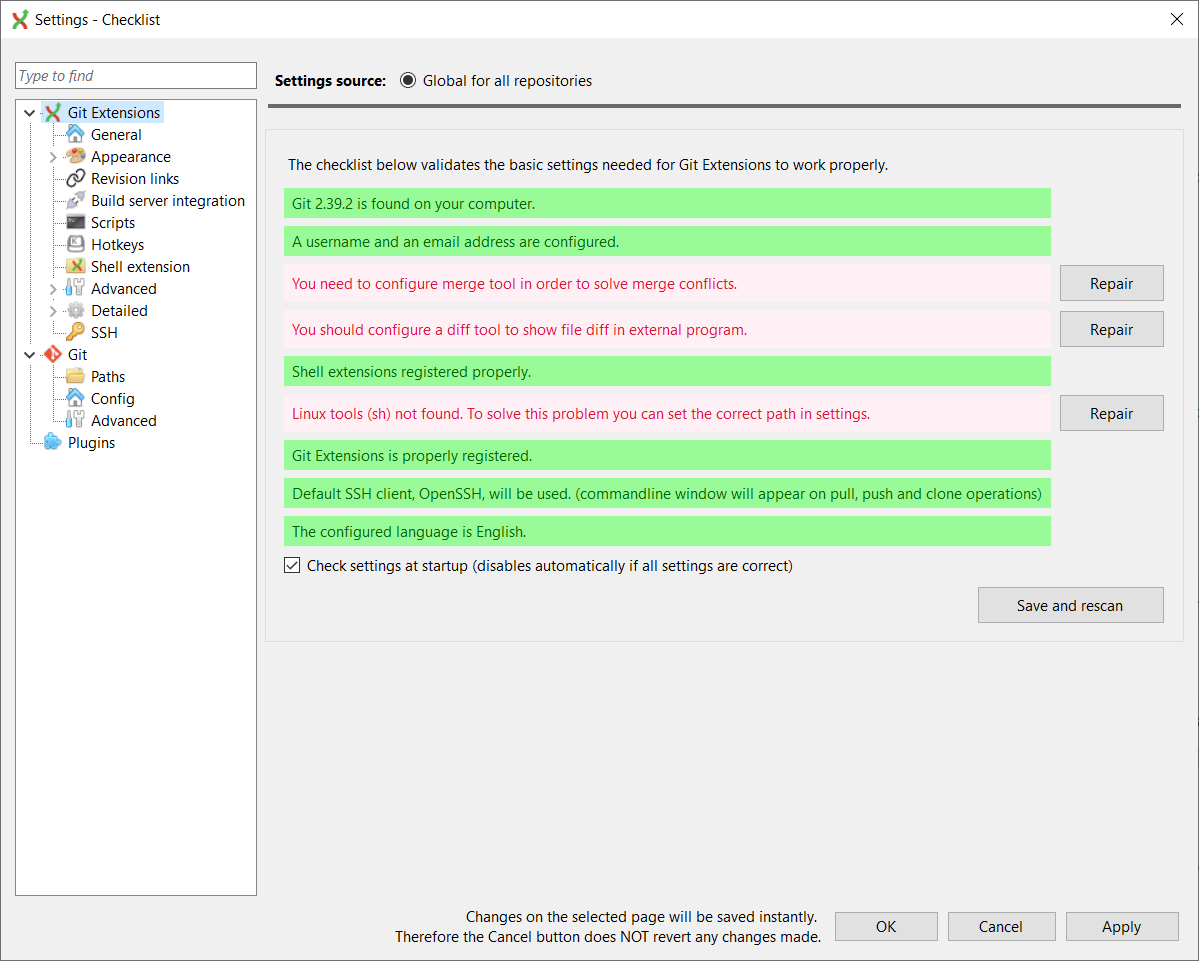
If no diff and merge tool is selected in Git Bash, the main window will show a warning.
Study Settings - Checklist
Installing Git Bash
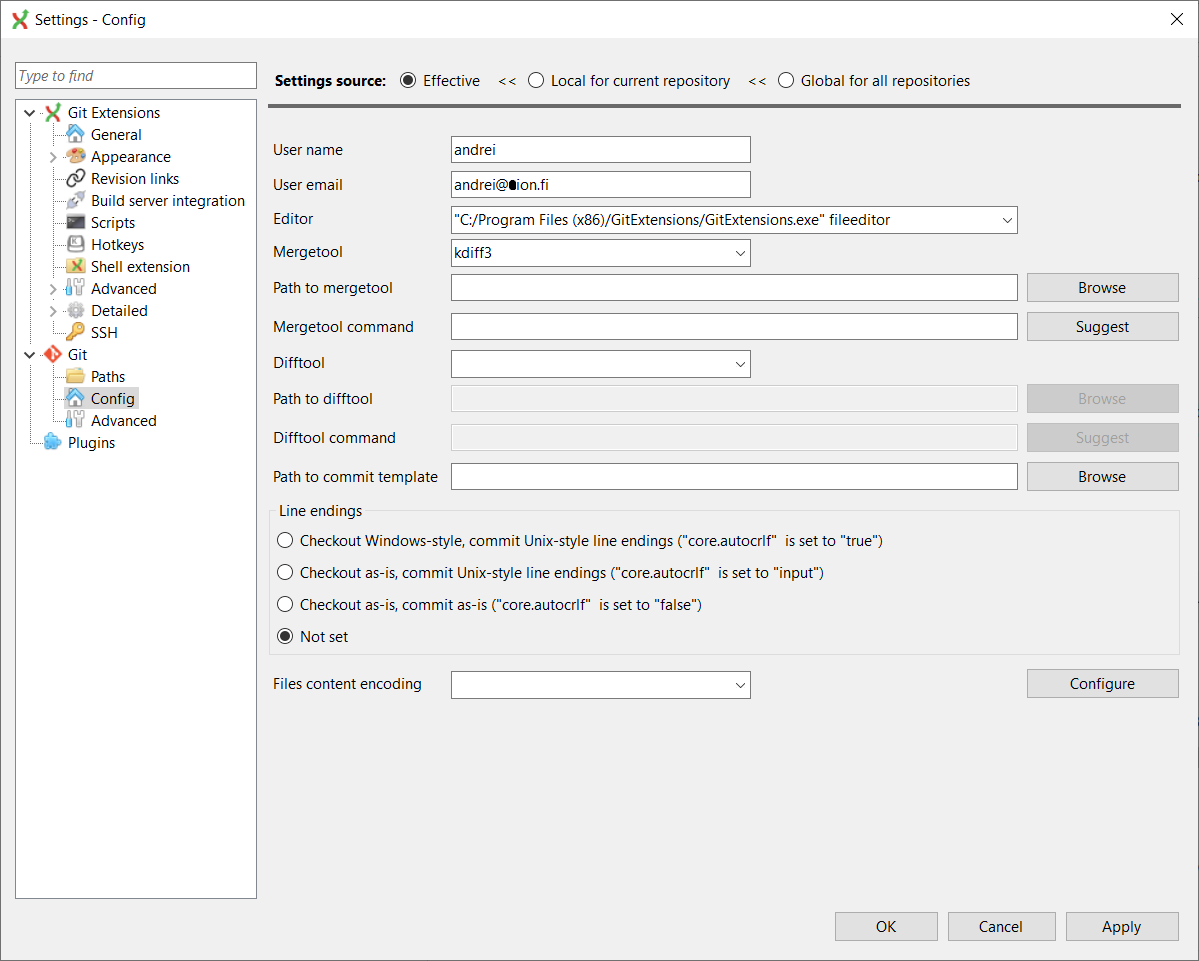
One of the available tools to choose from is kdiff3
Select kdiff3
Installing Git Bash
Then you need to specify
the path to kdiff3.exe
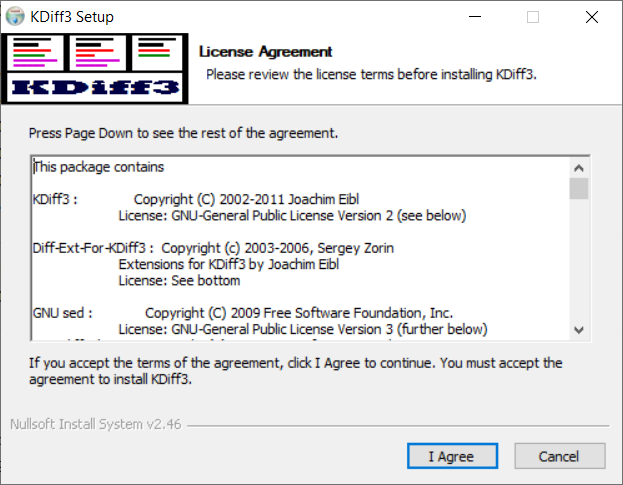
Download kdiff3 from
sourceforge.net
Start the installation and click I Agree
Installing Git Bash
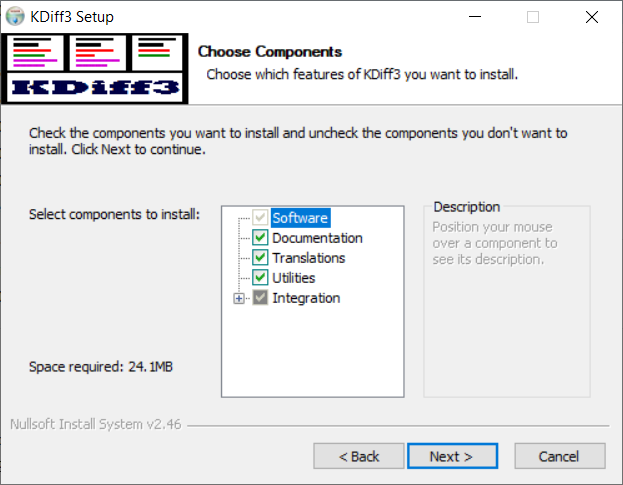
Select the components and click Next >
Installing Git Bash
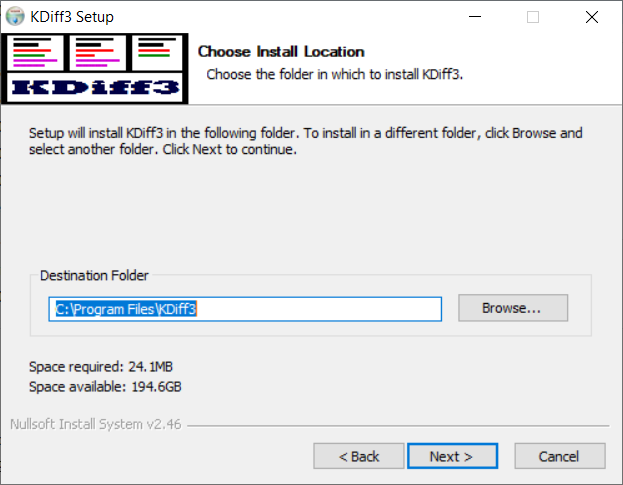
Choose the installation directory and click Next >
Installing Git Bash
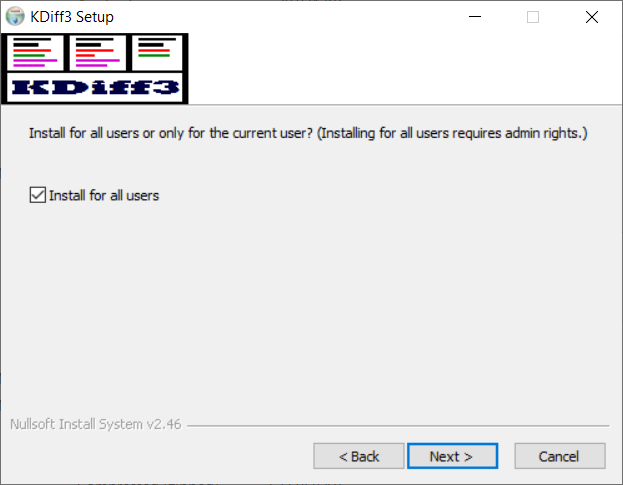
Set the installation type and click Next >
Installing Git Bash
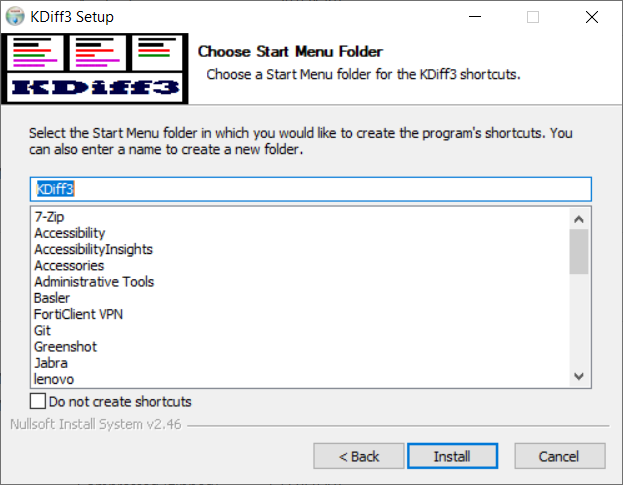
Choose the Start Menu directory and click Install
Installing Git Bash
Finish the installation by clicking Finish
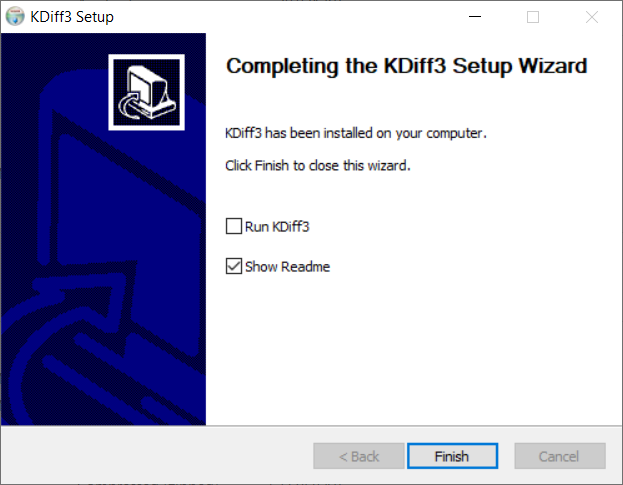
Installing Git Bash
Study the README
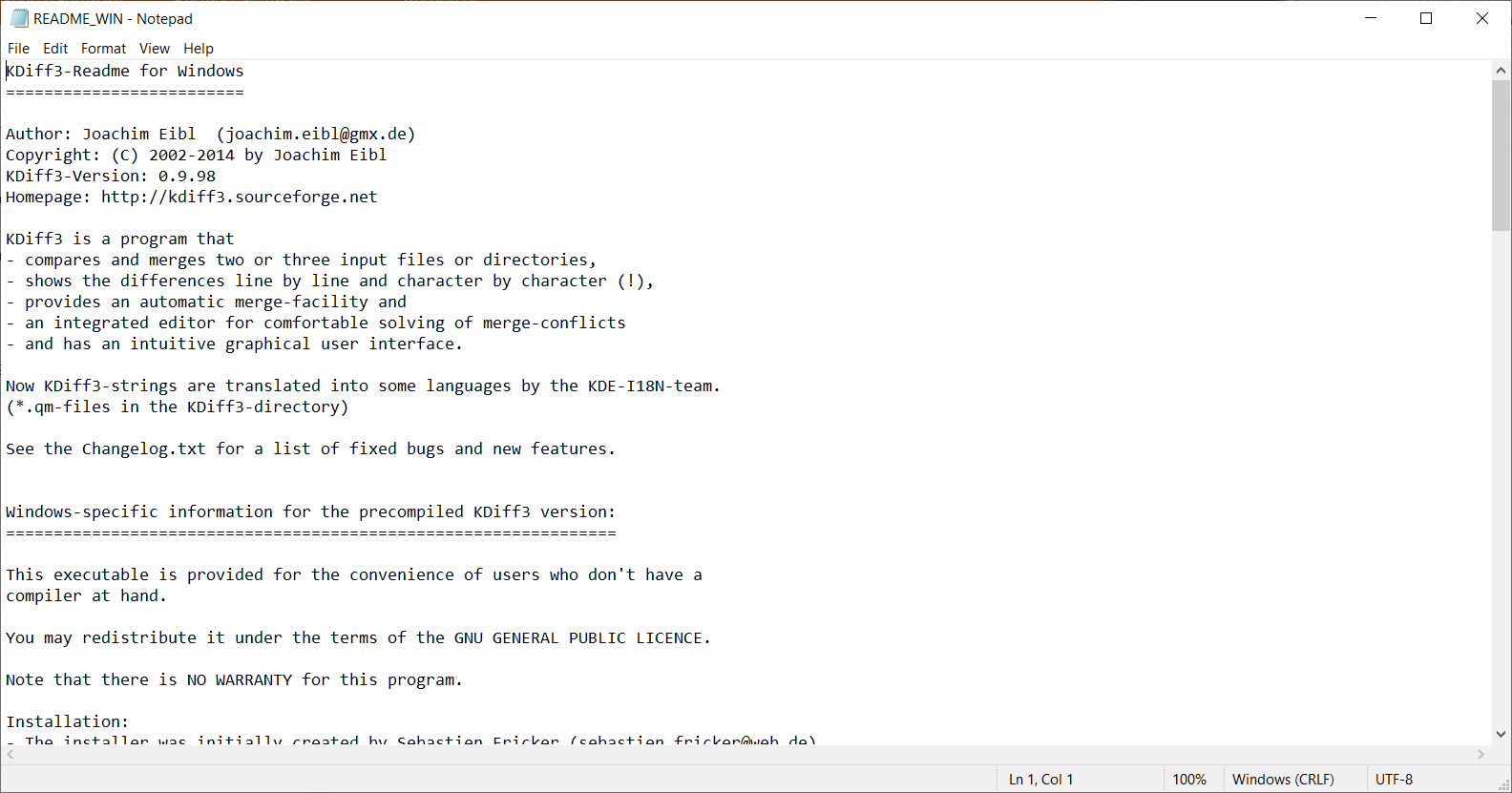
Installing Git Bash
Return to Git Extensions and specify the path to kdiff3.exe in Path to mergetool and Path to difftool
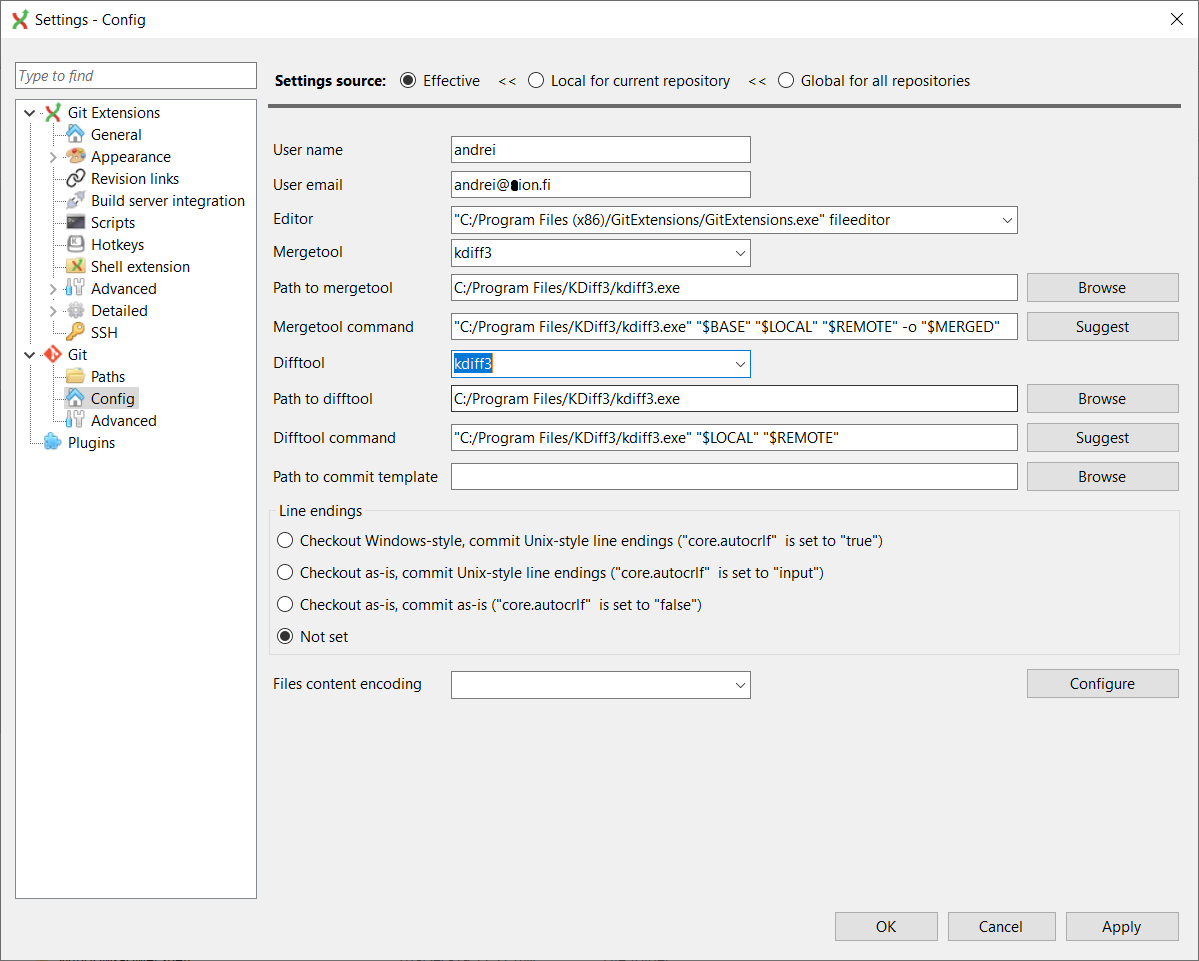
Installing Git Bash
Now you can safely use Git Extensions
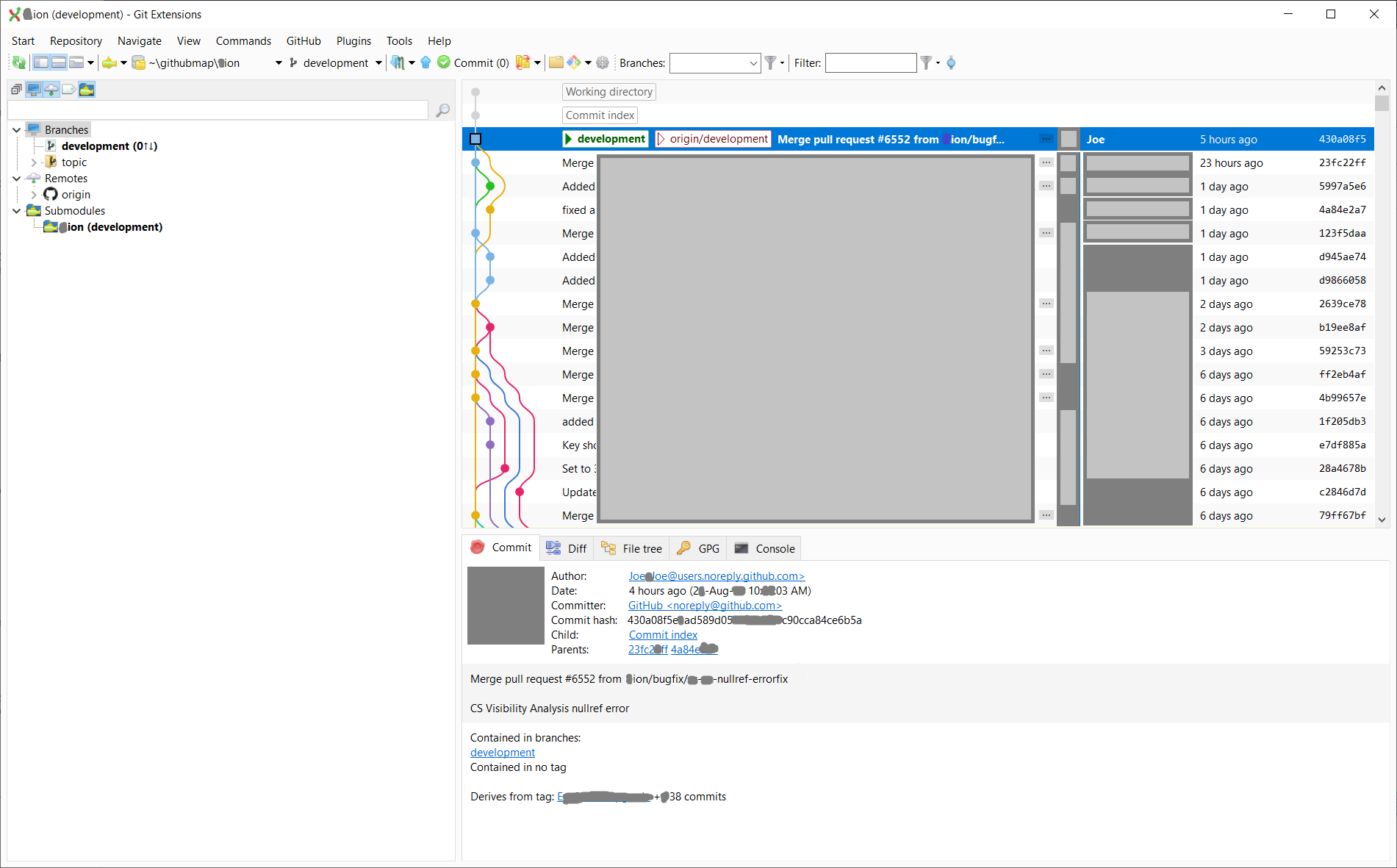
Installing Git Bash
Adding watch to Git Bash
watch is added as a function. It can be written into .bashrc
vi ~/.bashrc
watch () { ARGS="${@}" clear; while(true); do OUTPUT=`$ARGS` clear echo -e "Every 1.0s: $ARGS" echo "" echo -e "${OUTPUT[@]}" sleep 1 done }
Article author: Andrei Olegovich