PHP-FastCGI on Windows Nginx
Введение
Официальная инструкция здесь
Структура проекта
Скачайте Nginx отсюда и распакуйте в директорию
C:\DEV\
Переименуйте директорию nginx-1.2X.X просто в nginx
C:\DEV\nginx
Там же создайте файл start-php-fcgi.bat со следующим кодом
@ECHO OFF ECHO Starting PHP FastCGI... set PATH=C:\PHP;%PATH% c:\bin\RunHiddenConsole.exe C:\PHP\php-cgi.exe -b 127.0.0.1:9000
Скачайте PHP для Windows
отсюда
в данном примере используется VS16 x64 Thread Safe (2023-Dec-20 14:24:44)
Распакуйте в
C:\
Переименуйте в PHP
C:\PHP
Скачайте RunHiddenConsole
отсюда
Распакуйте в
C:\bin
Создайте директорию
C:\DEV\nginx\html\www.php.com
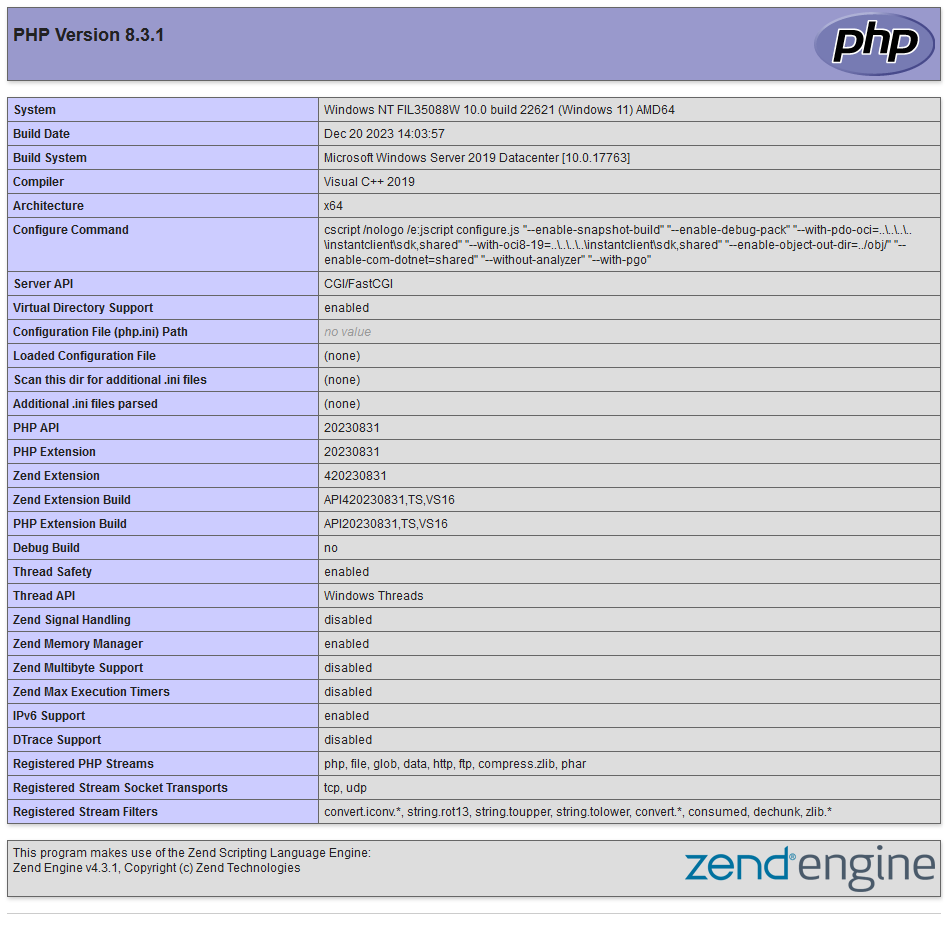
И в ней файл index.php со следующим кодом
<?php phpinfo(); ?>
В файле nginx.conf добавьте index.php в раздел location /
… location / { root html; index index.php index.html index.htm; } …
Раскомментируйте блок pass the PHP scripts to FastCGI server listening on 127.0.0.1:9000
Измените fastcgi_param на SCRIPT_FILENAME $document_root$fastcgi_script_name;
… # pass the PHP scripts to FastCGI server listening on 127.0.0.1:9000 # location ~ \.php$ { root html; fastcgi_pass 127.0.0.1:9000; fastcgi_index index.php; # fastcgi_param SCRIPT_FILENAME /scripts$fastcgi_script_name; fastcgi_param SCRIPT_FILENAME $document_root$fastcgi_script_name; include fastcgi_params; } …
Добавьте в системную переменную PATH следующие пути
C:\bin
C:\PHP
C:\DEV\nginx
Запустите
start-php-fcgi.bat
а затем
nginx.exe
В браузере откройте
http://localhost/www.php.com/
Автор статьи: Андрей Олегович