Guest Additions VirtualBox
This article is also available in Russian: Russian version.
Introduction
You can see an example of installing Guest Additions for a guest CentOS 7 on Ubuntu 20.04 here
Preparing the system
The system has to be prepared for the Guest Additions installation in advance. For example, if you install Guest Additions on Ubuntu you first need to install gcc, make, perl
sudo apt install -y gcc make perl
Insert Guest Additions CD image
To install Guest Additions you first need to put them into a virtual CD.
This is done through
Devices → Insert Guest Additions CD image…
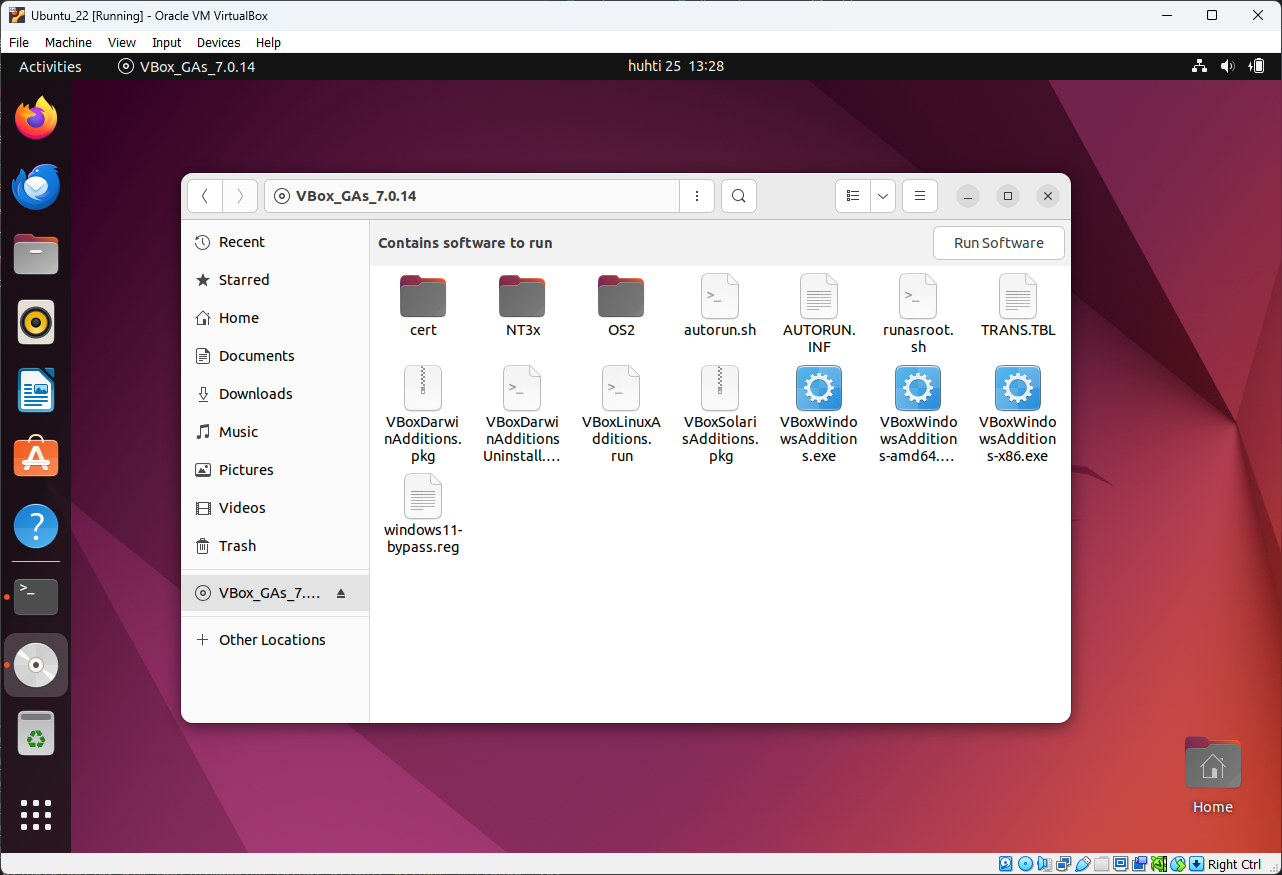
Then you need to open the virtual CD and make sure that it contains the file autorun.sh
andrei@andrei-ubuntu22:/media/andrei/VBox_GAs_7.0.14$ ls
AUTORUN.INF runasroot.sh VBoxSolarisAdditions.pkg autorun.sh TRANS.TBL VBoxWindowsAdditions-amd64.exe cert VBoxDarwinAdditions.pkg VBoxWindowsAdditions.exe NT3x VBoxDarwinAdditionsUninstall.tool VBoxWindowsAdditions-x86.exe OS2 VBoxLinuxAdditions.run windows11-bypass.reg
Then you need to run this script, usually this can be done by clicking the Run Software button in the UI
But you can also do it from the terminal
./autorun.sh
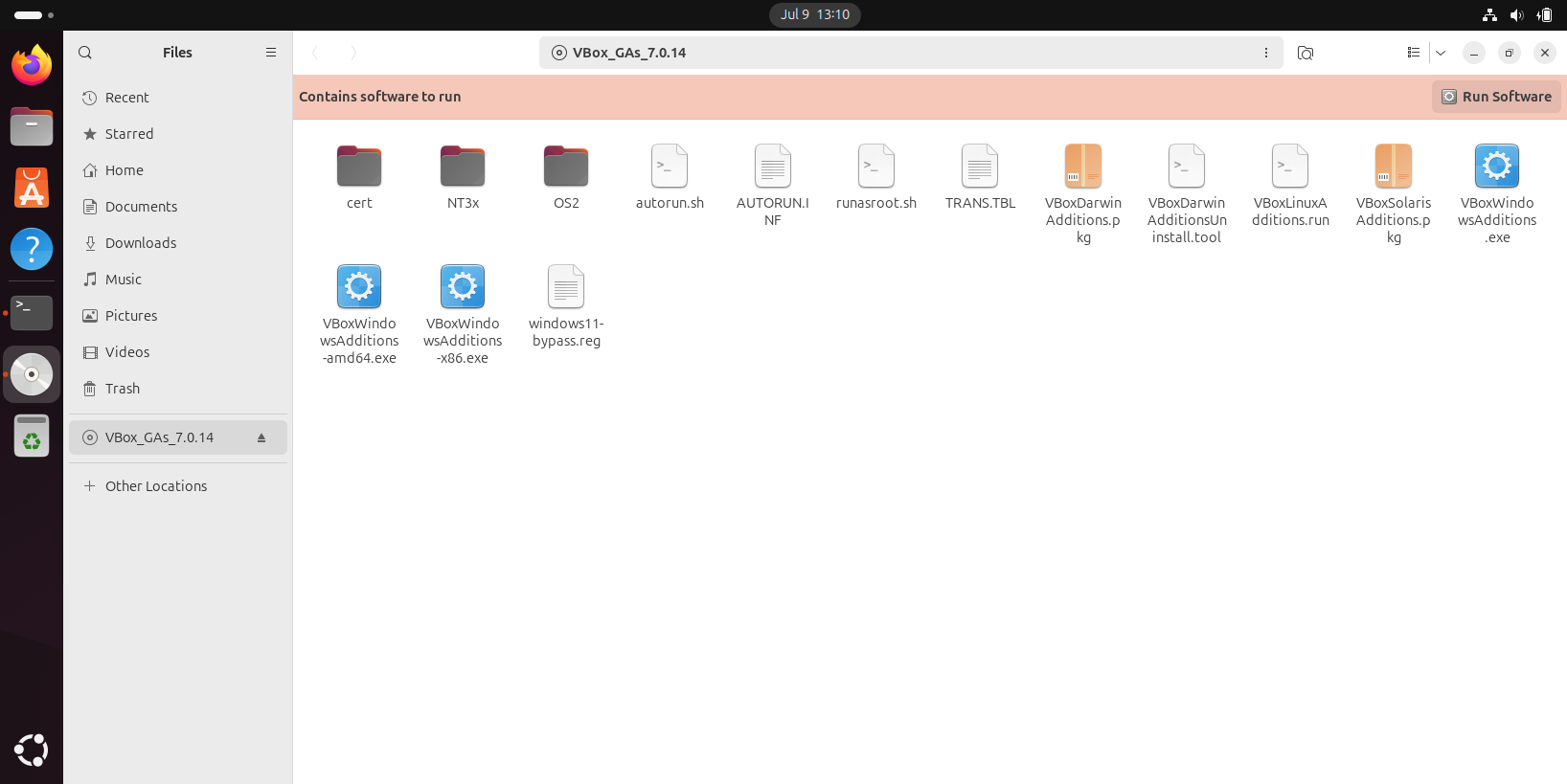
In Ubuntu 24.04 the designers made the Run Software button more visible
Click Run Software
https://aredel.com
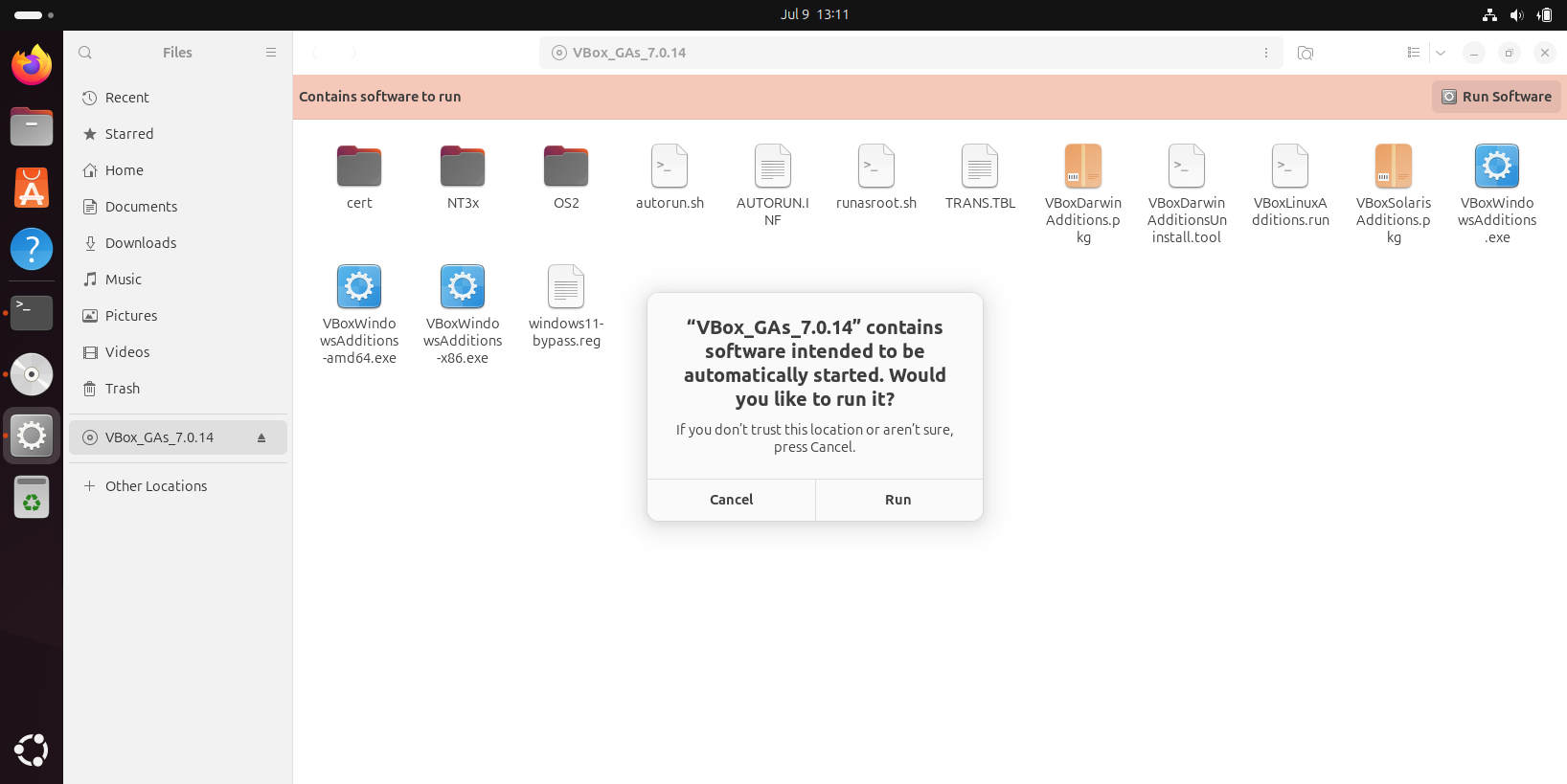
Click Run
https://aredel.com
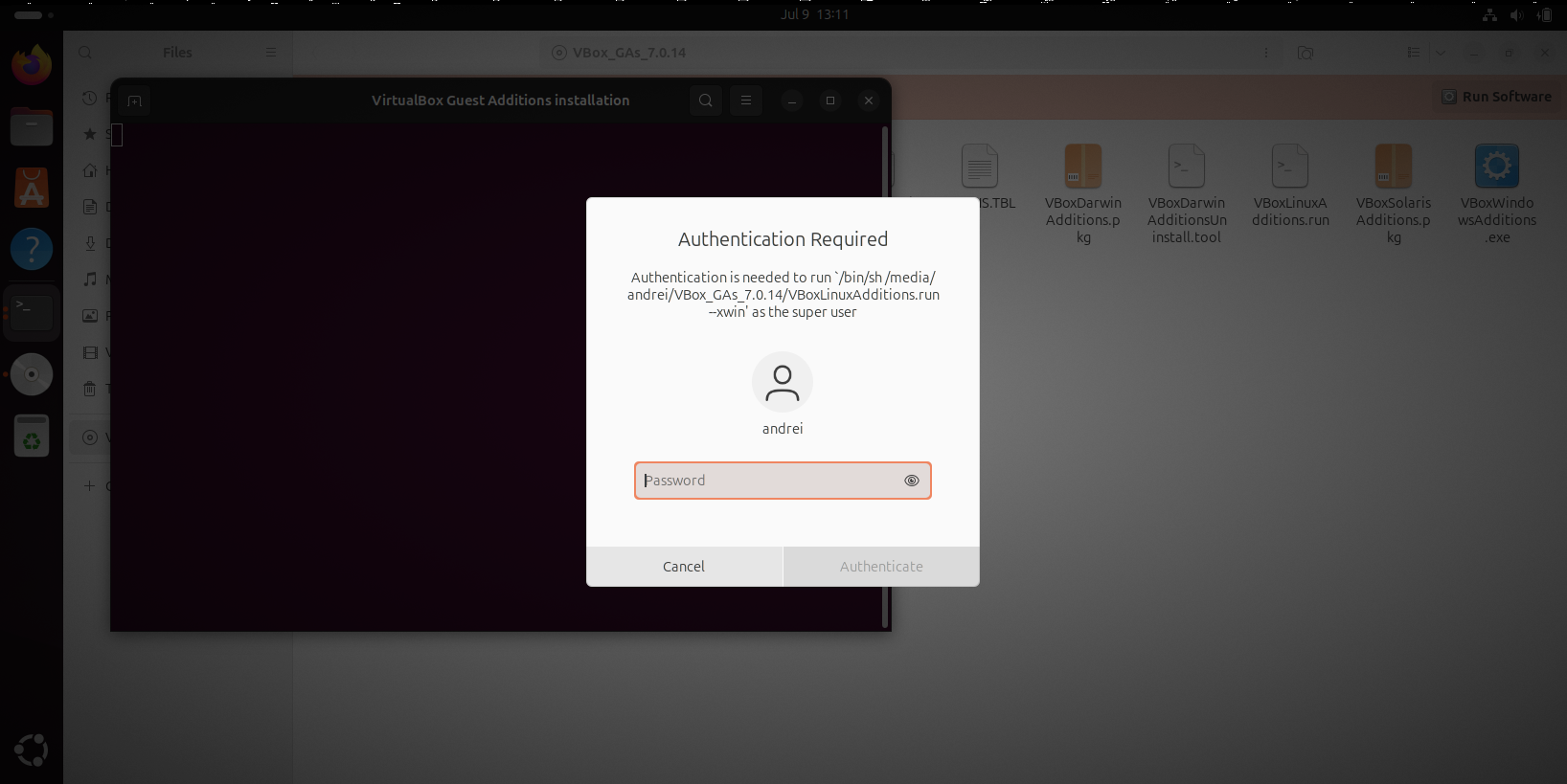
Enter the password
https://aredel.com
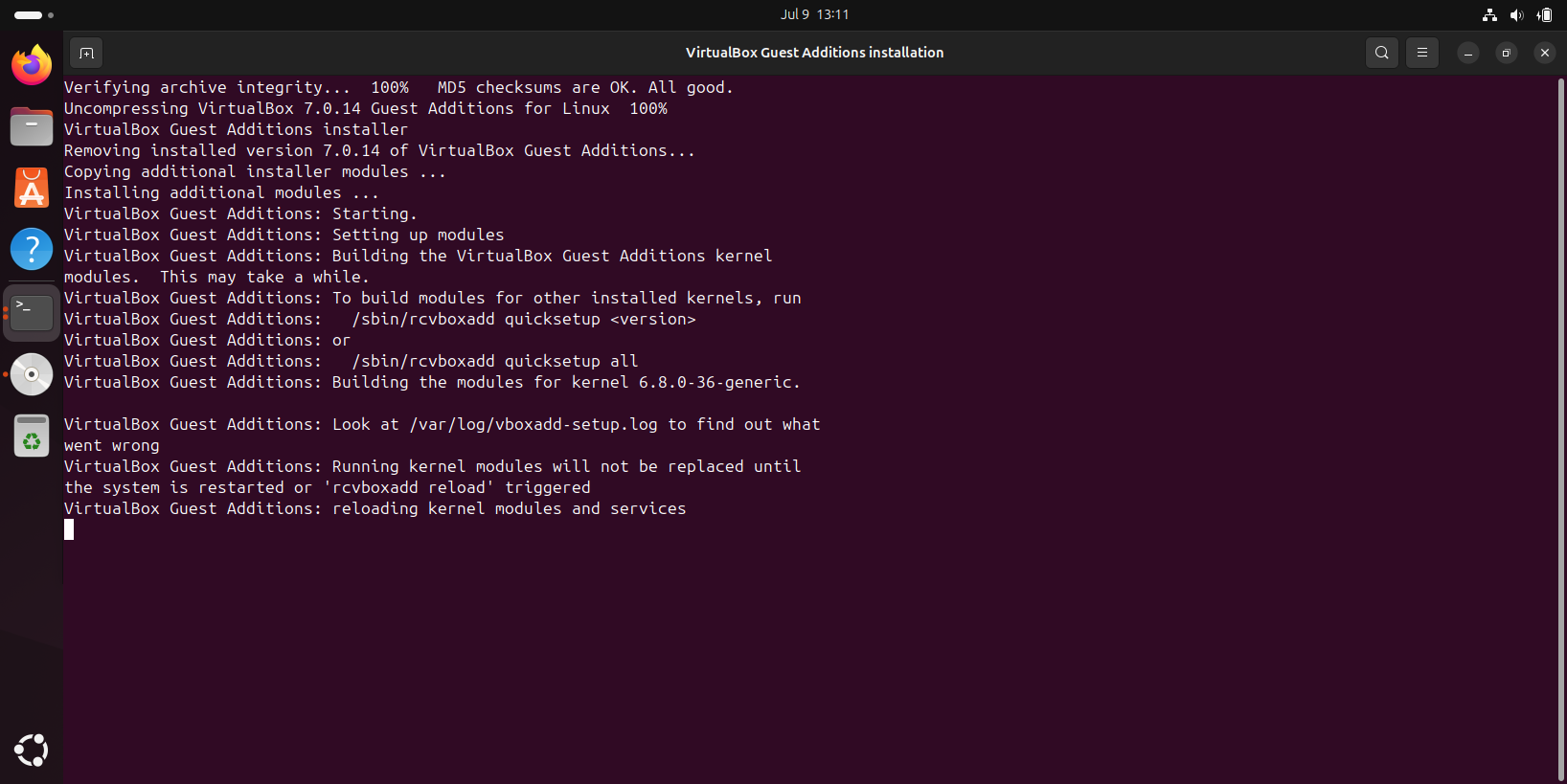
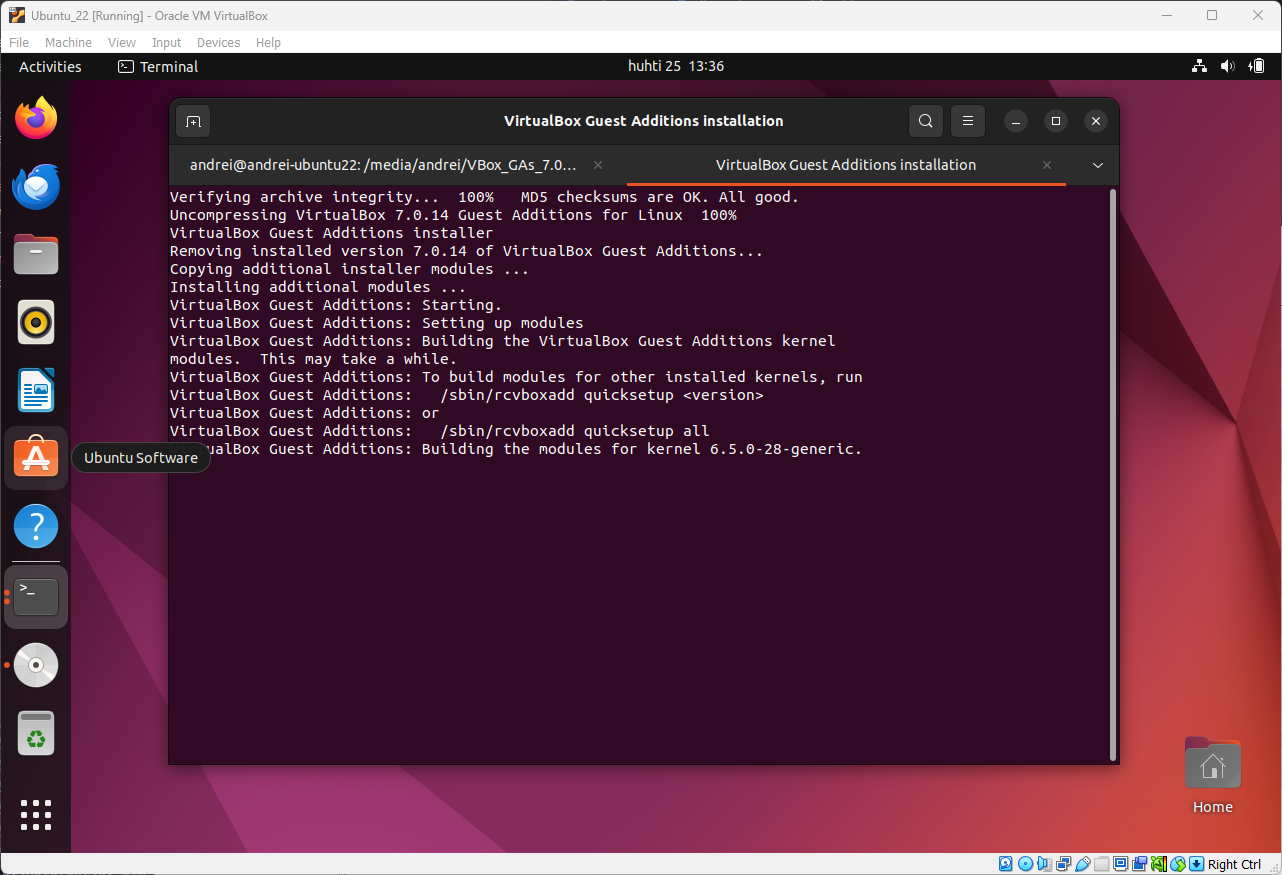
Wait for the installation to finish
https://aredel.com
In older releases the Run Software button was harder to see
Click Run Software
https://aredel.com
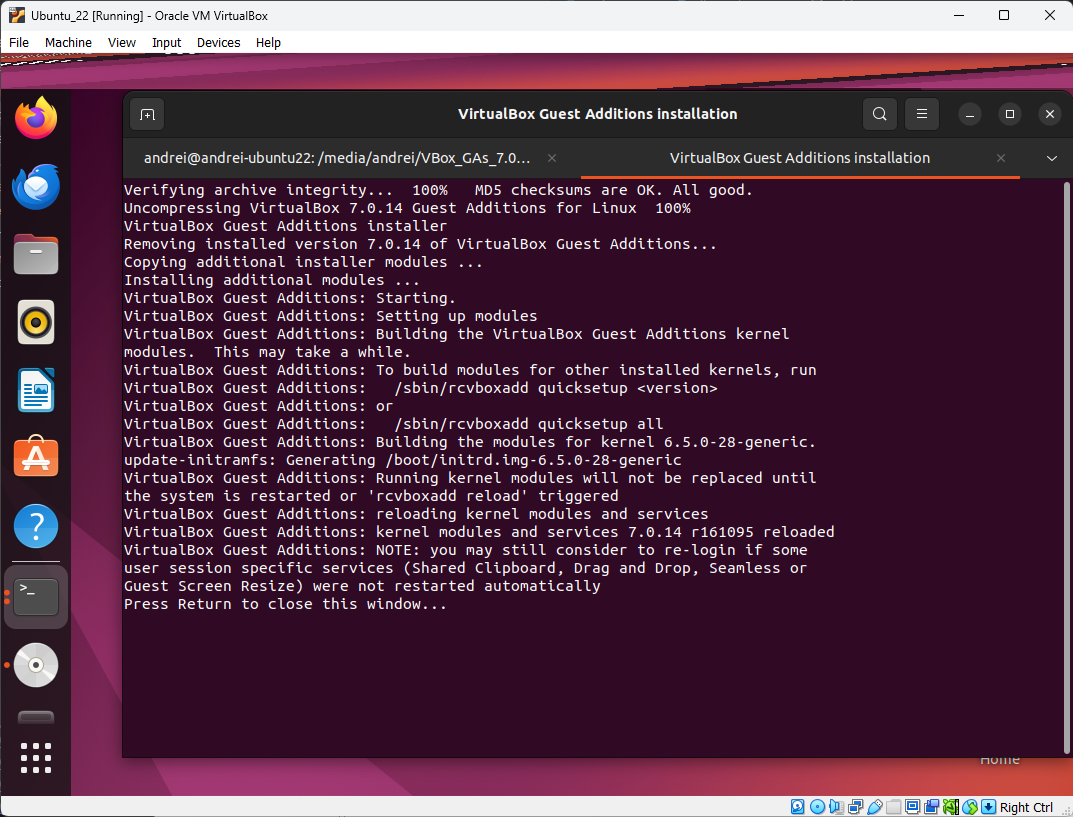
Wait for the installation to finish
https://aredel.com
It is better to reboot
https://aredel.com
Article author: Arthur Isaev