Installing the Ubuntu 24.04 server
Introduction
The graphical interface helps you install Ubuntu. It is not as difficult as it may seem at first glance.
Download
List of official repositories
launchpad.net
You can download Ubuntu Server from the website
ubuntu.com/download
If you need a desktop rather than a server -
ubuntu.com/download
Download from ubuntu.com
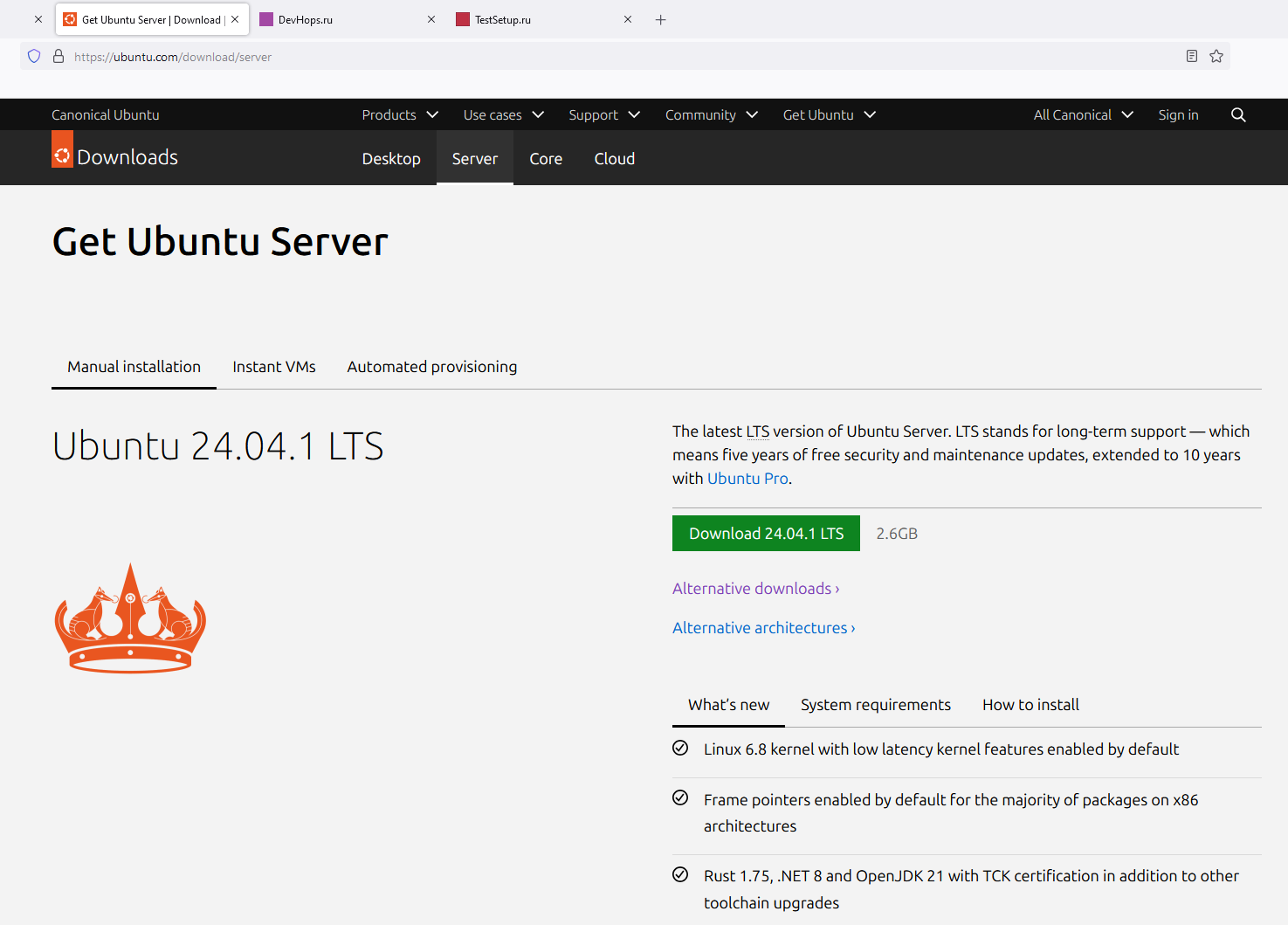
https://aredel.com
The next step depends on which OS you have installed and where you want to install Ubuntu
If you are installing on
VirtualBox
- just specify the path to the image
If you are on
Windows
- write the image to a USB stick using
UltraISO
When the USB stick with the image is ready:
Insert it into a USB port. Reboot the computer. Enter the BIOS. Go to the Boot section. Make booting from the USB stick
option number one. Install following the instructions:
Installation
Start the installation *Try or Install Ubuntu Server
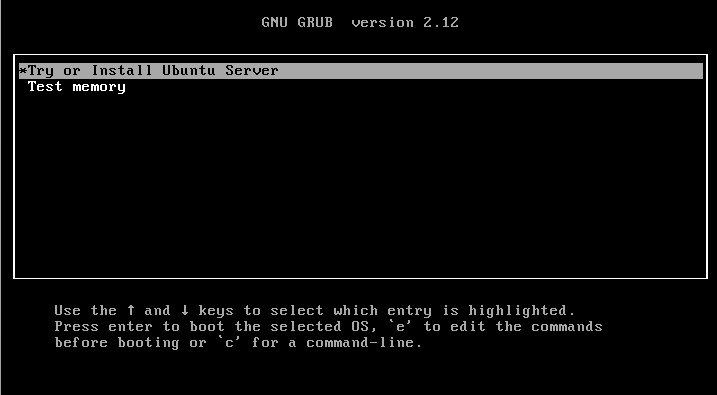
https://aredel.com
Wait a little
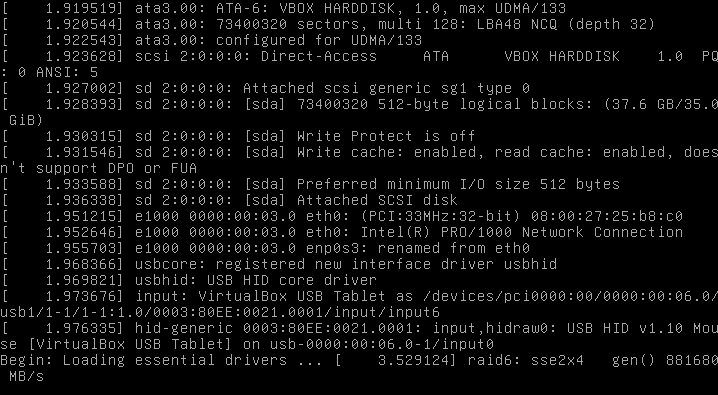
https://aredel.com
Choose the language
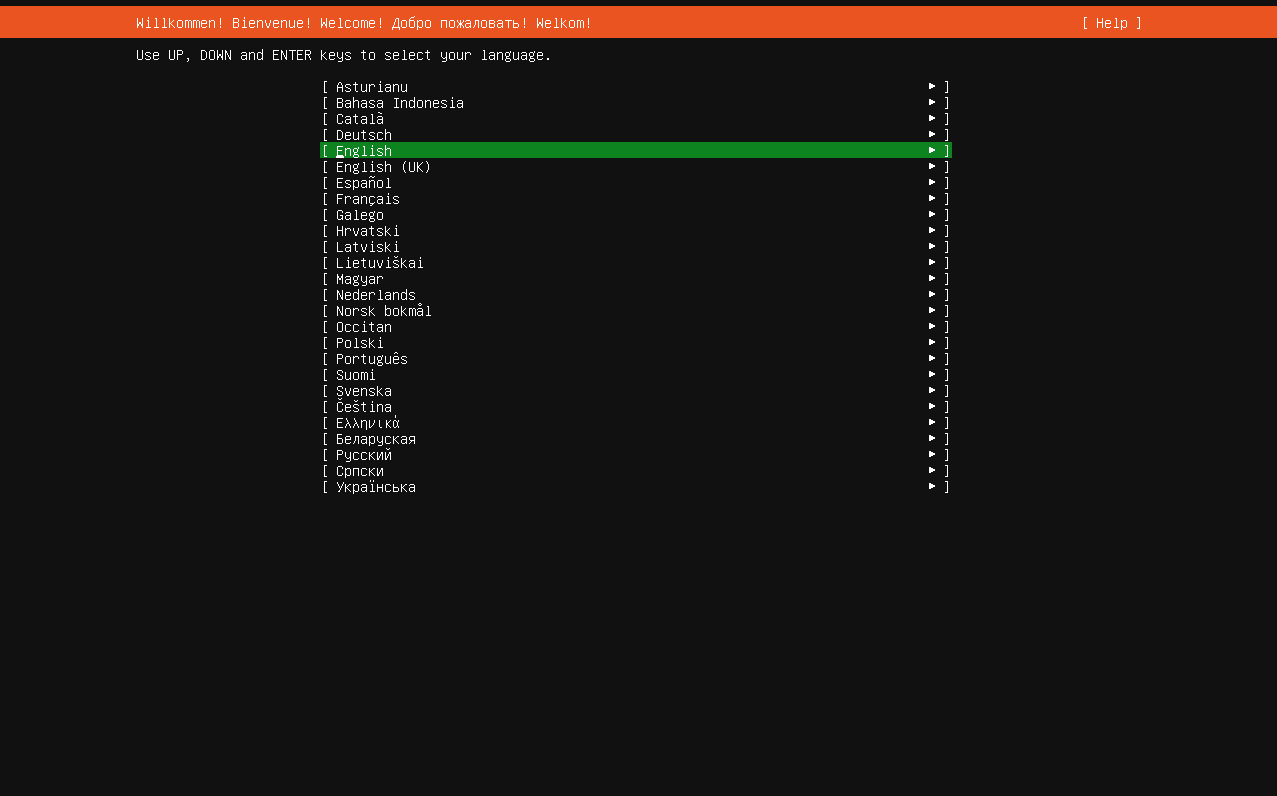
https://aredel.com
Choose the keyboard layout and press Done
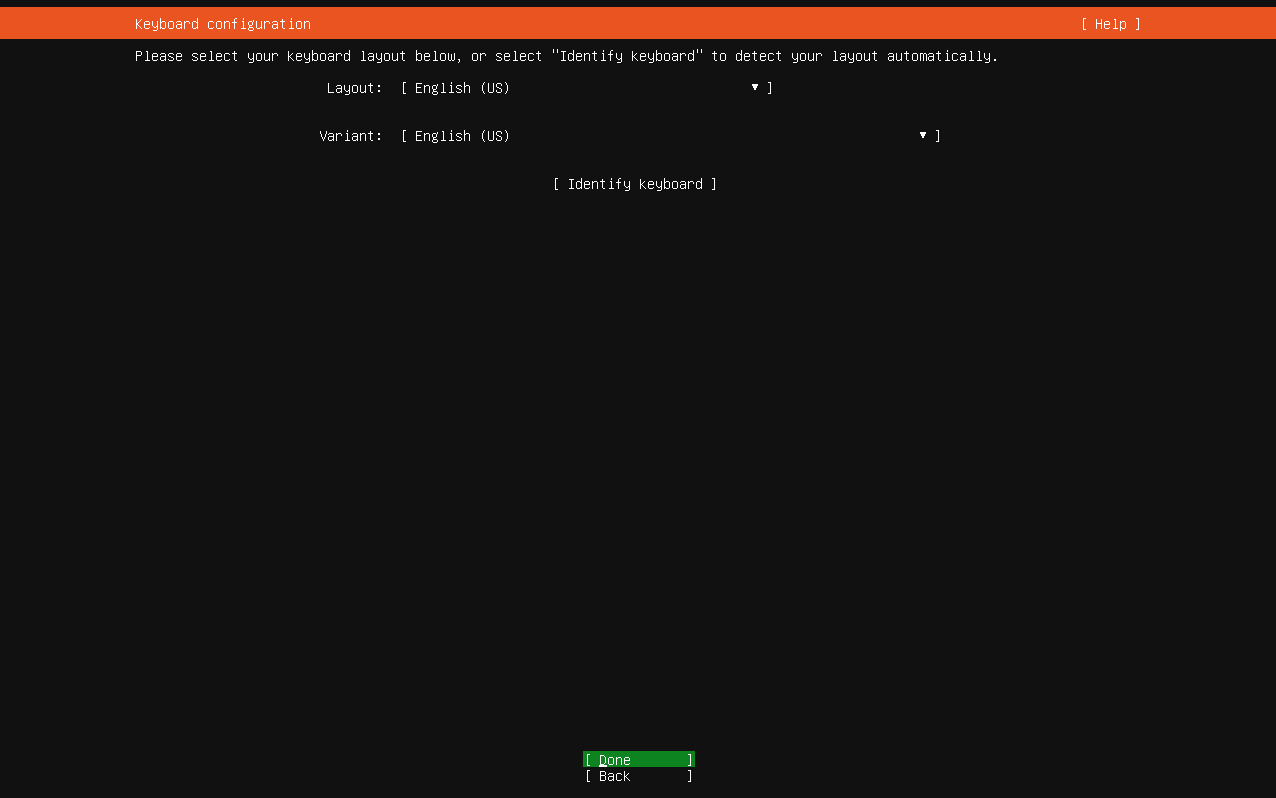
https://aredel.com
Choose the type
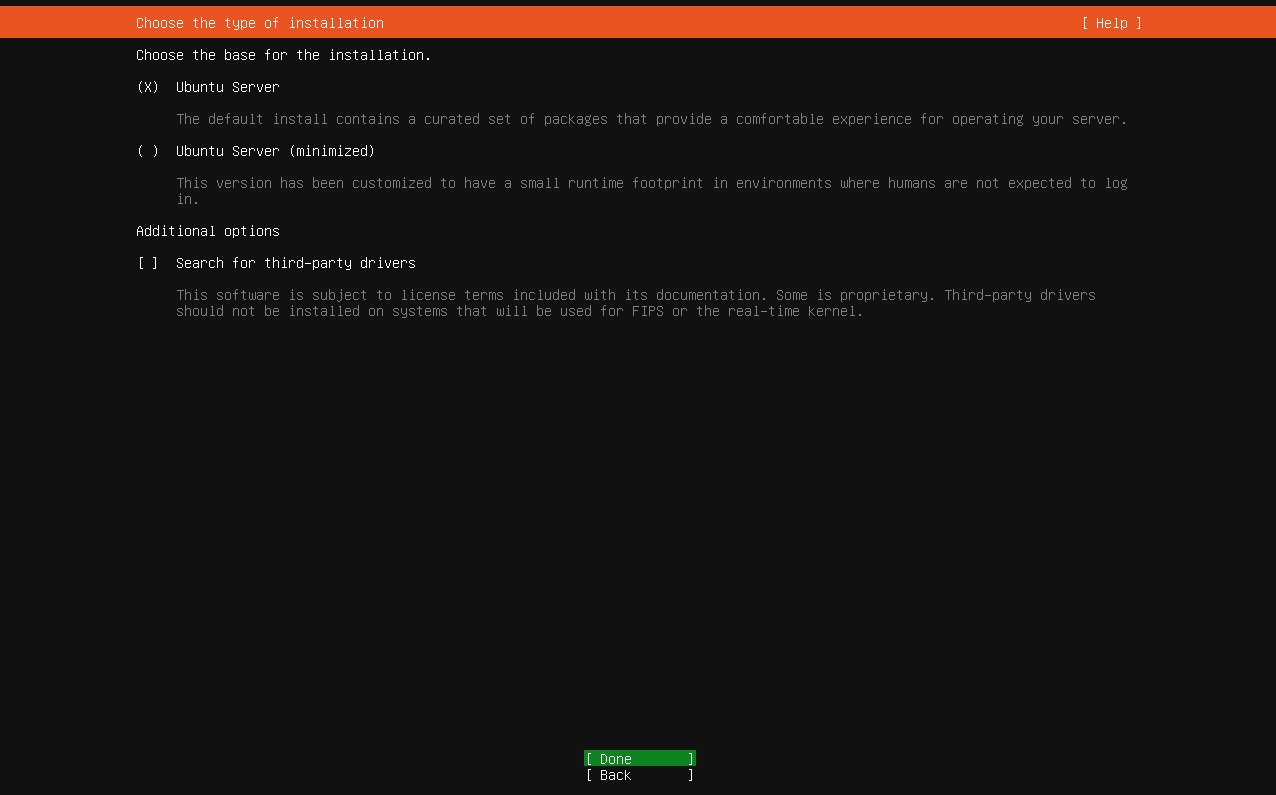
https://aredel.com
Optionally add the search for third-party drivers
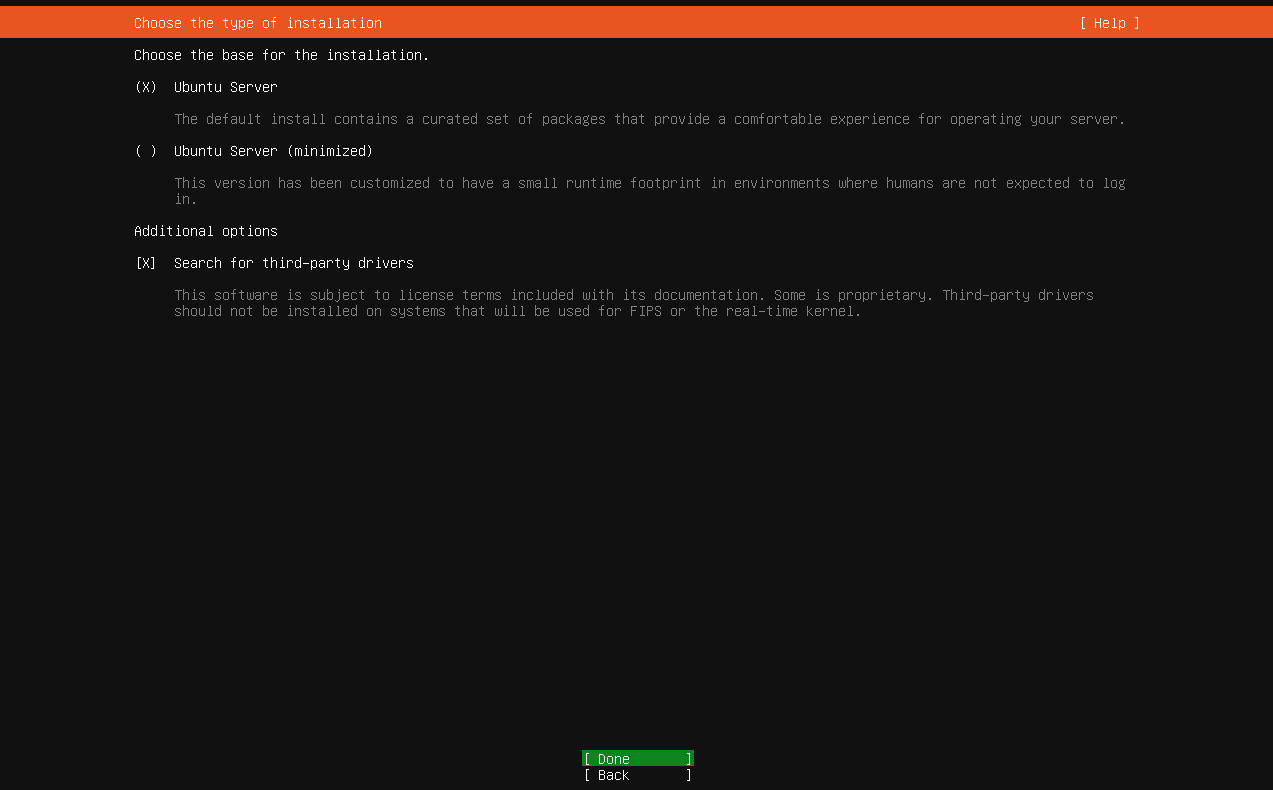
https://aredel.com
Specify a proxy if needed
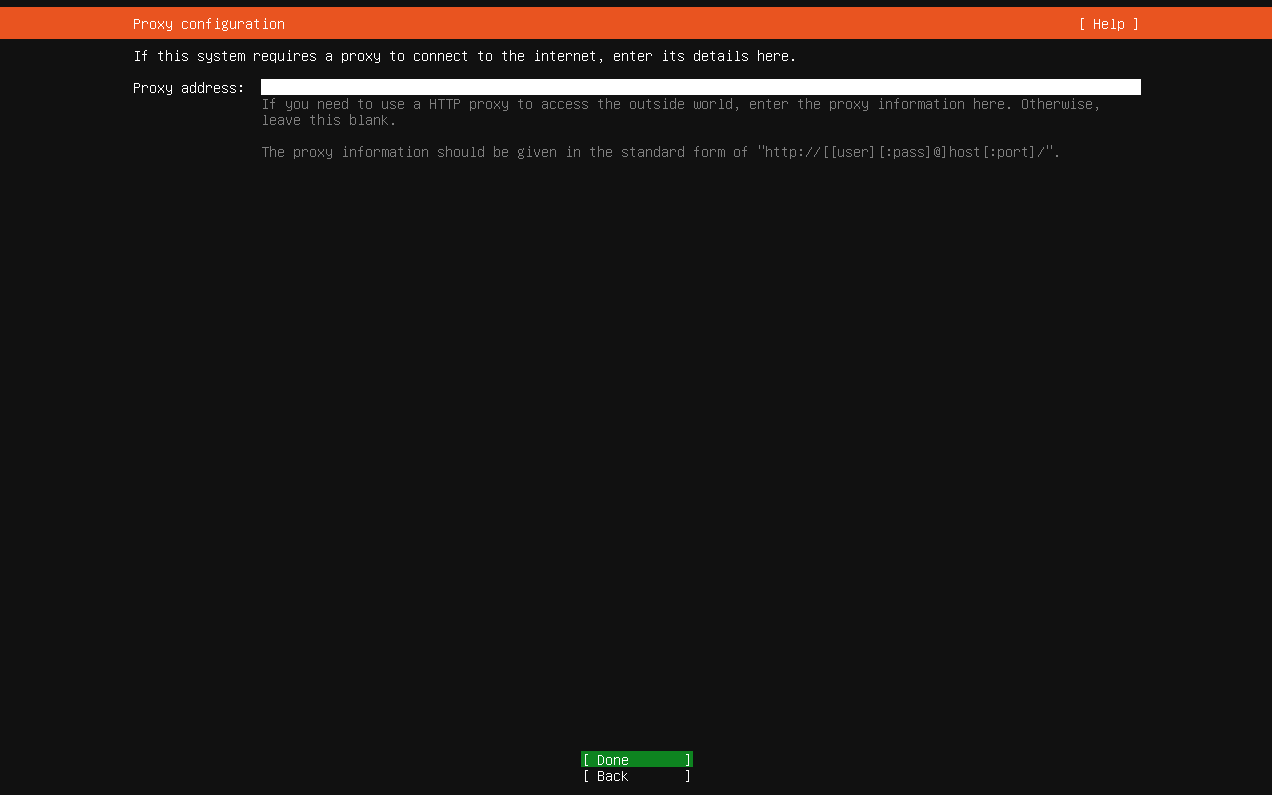
https://aredel.com
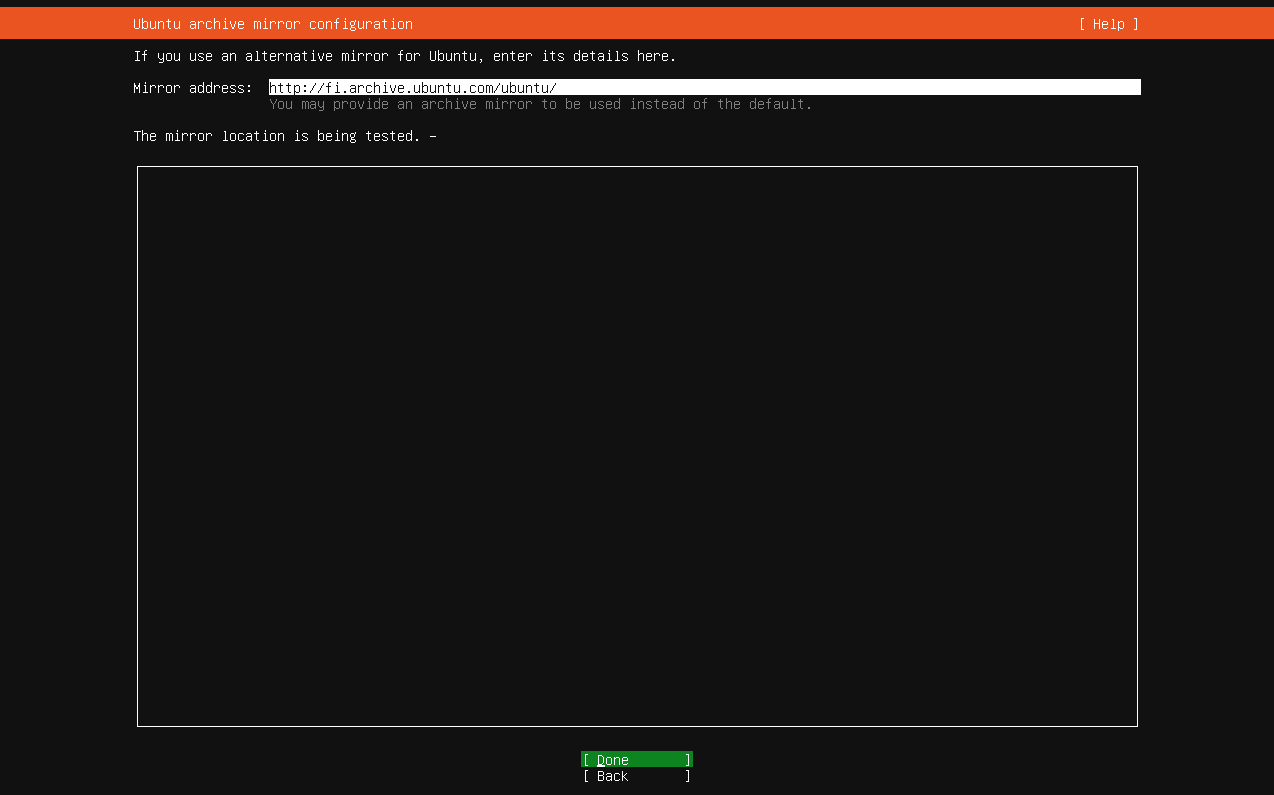
Specify the main mirror
https://aredel.com
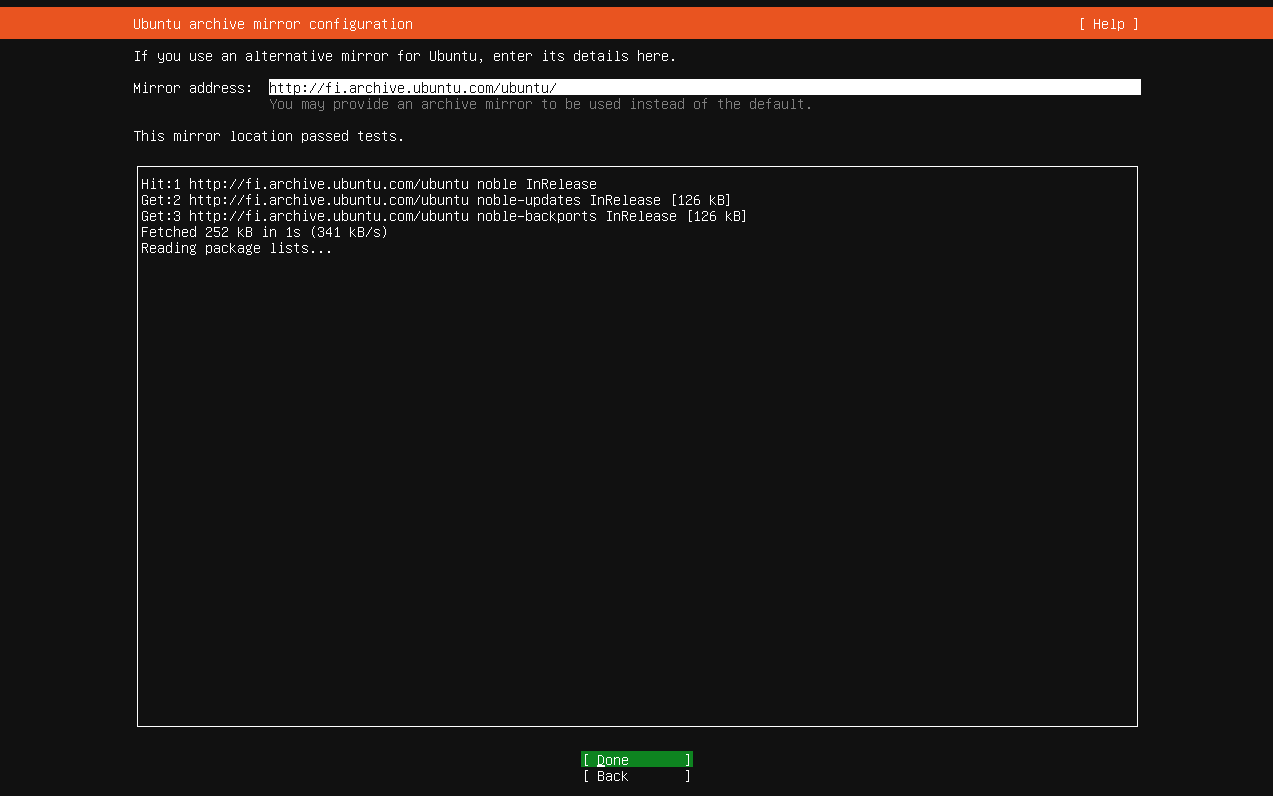
Wait for the check to finish and press Done
https://aredel.com
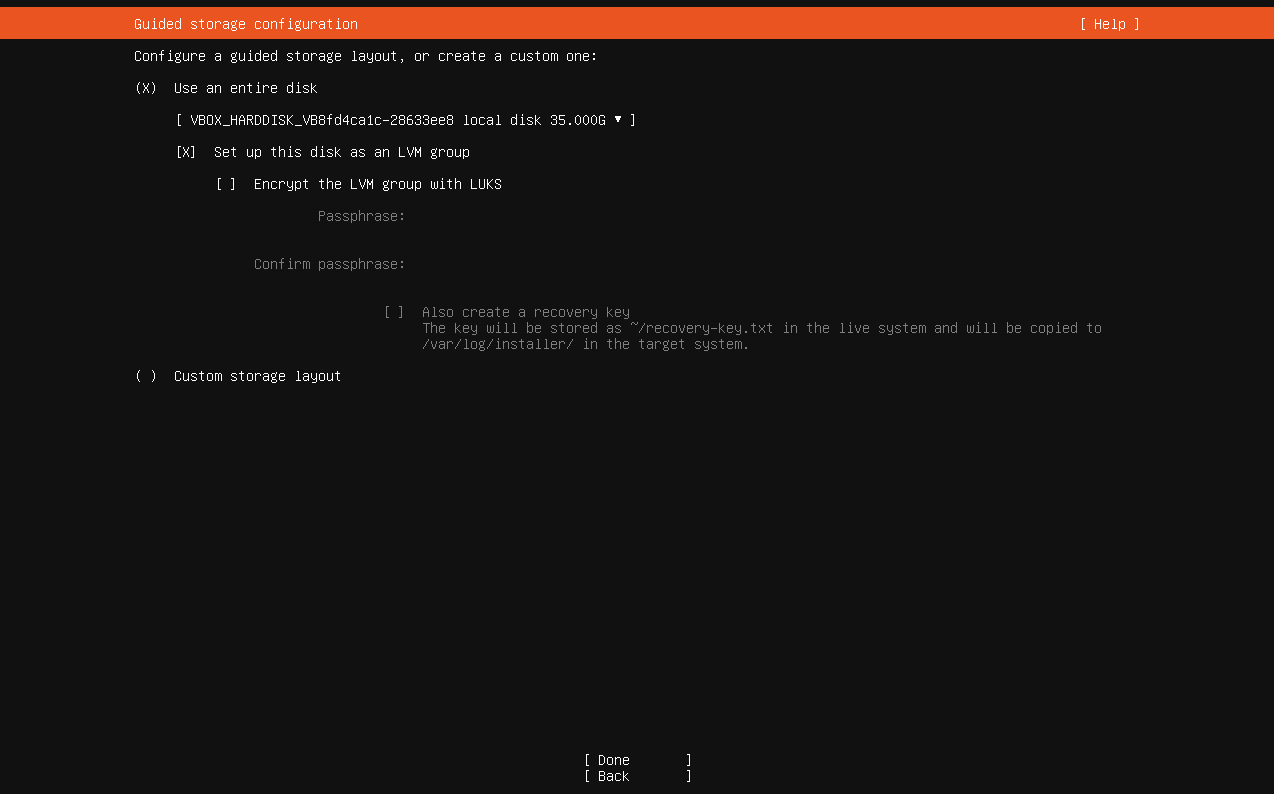
Choose Use an entire disk or specify your own partitioning scheme
https://aredel.com
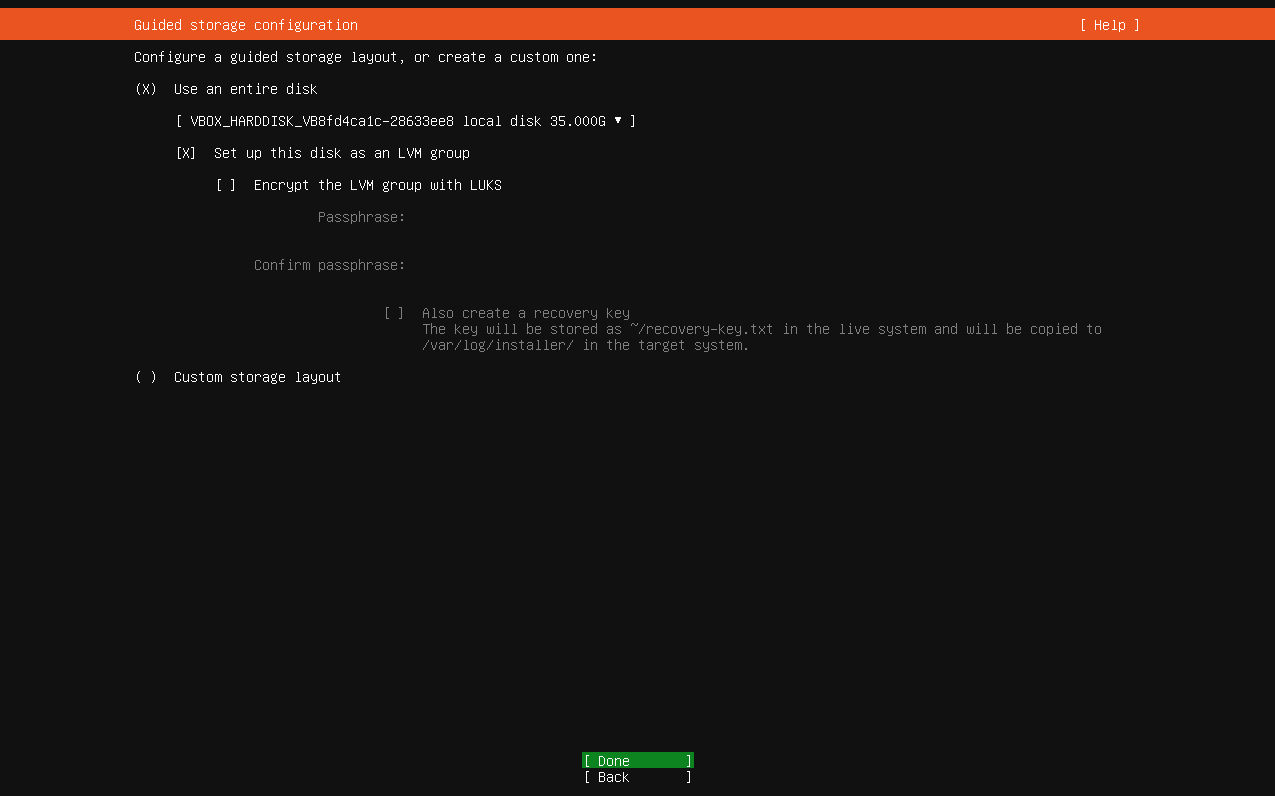
Press Done
https://aredel.com
Press Done
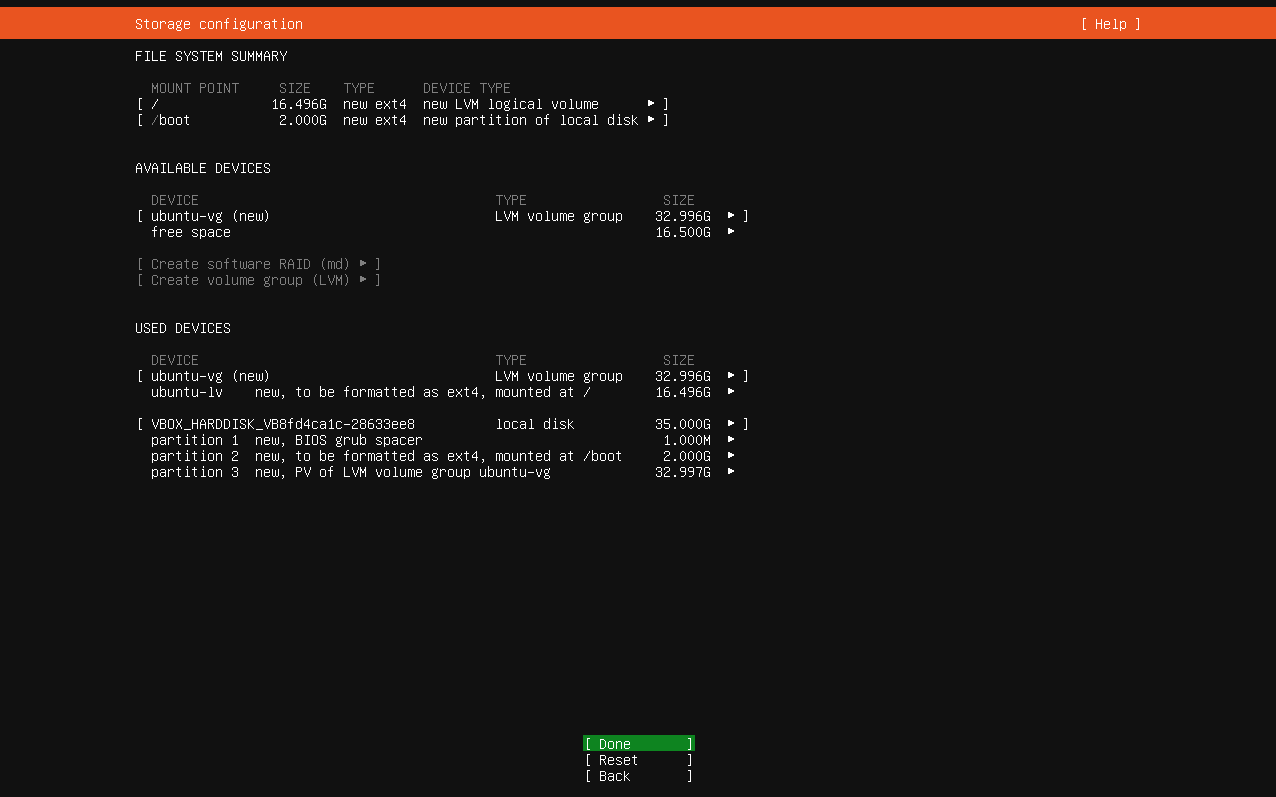
https://aredel.com
Press Continue
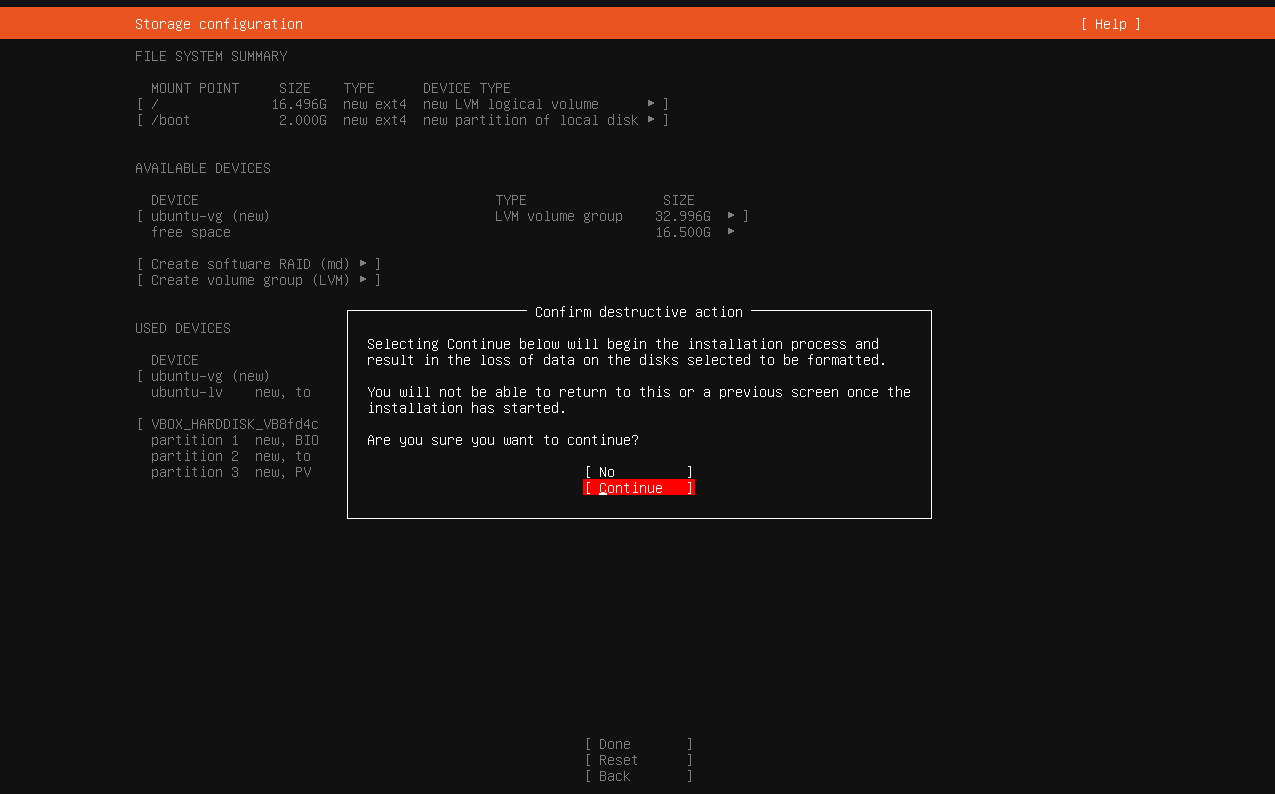
https://aredel.com
Create your account
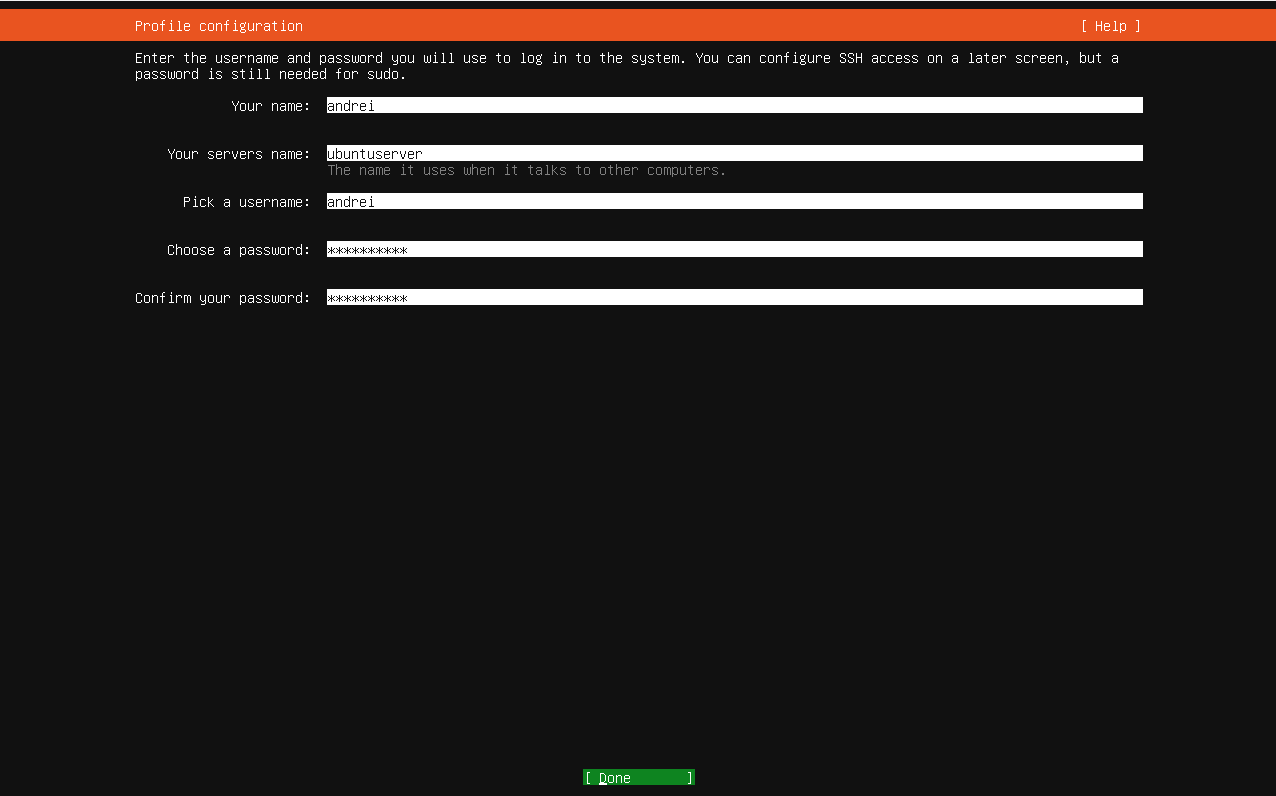
https://aredel.com
Press Skip for now
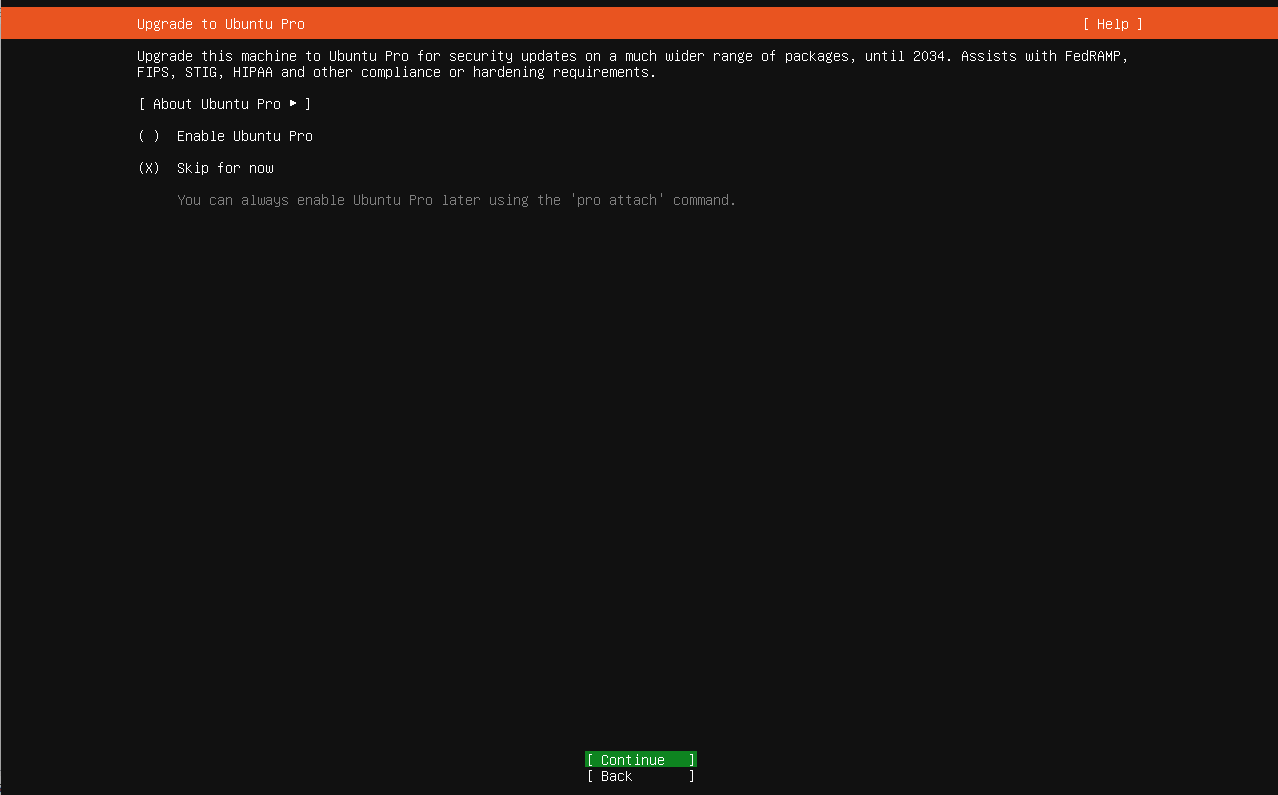
https://aredel.com
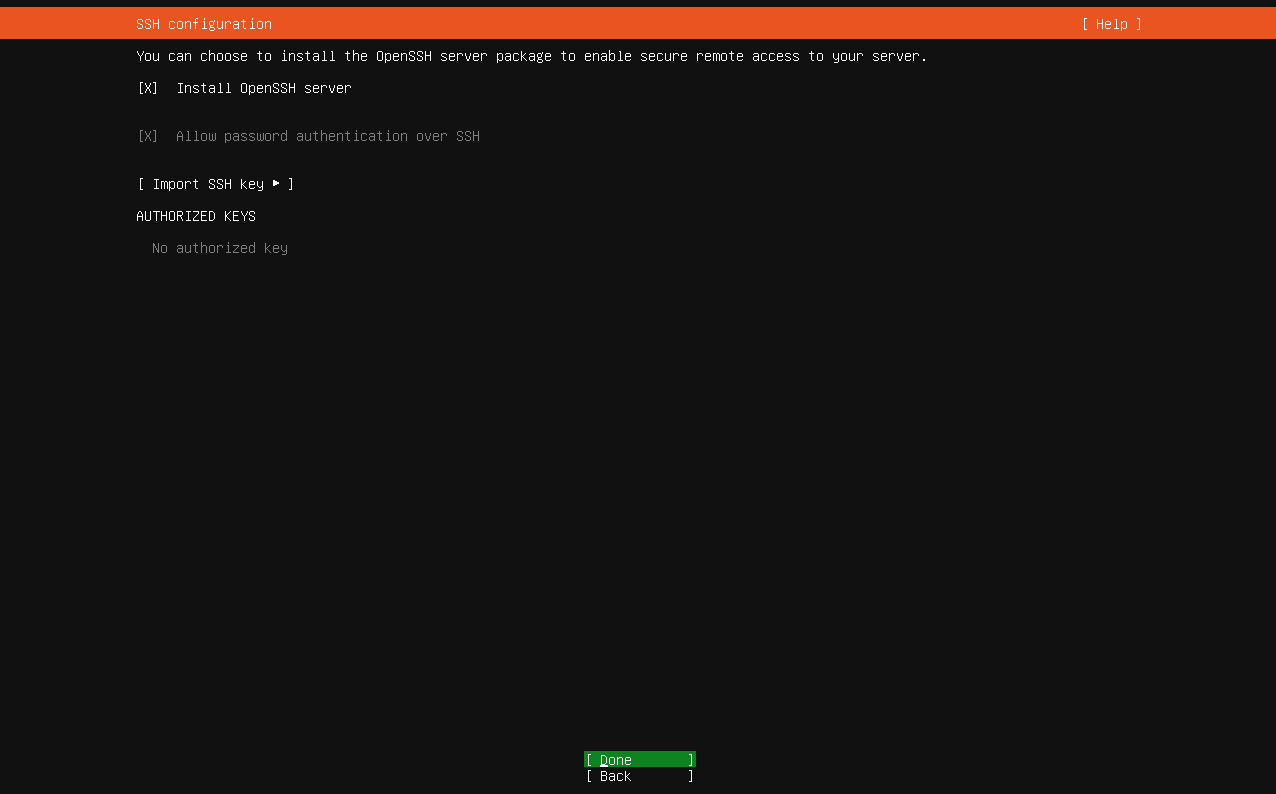
Press Done
https://aredel.com
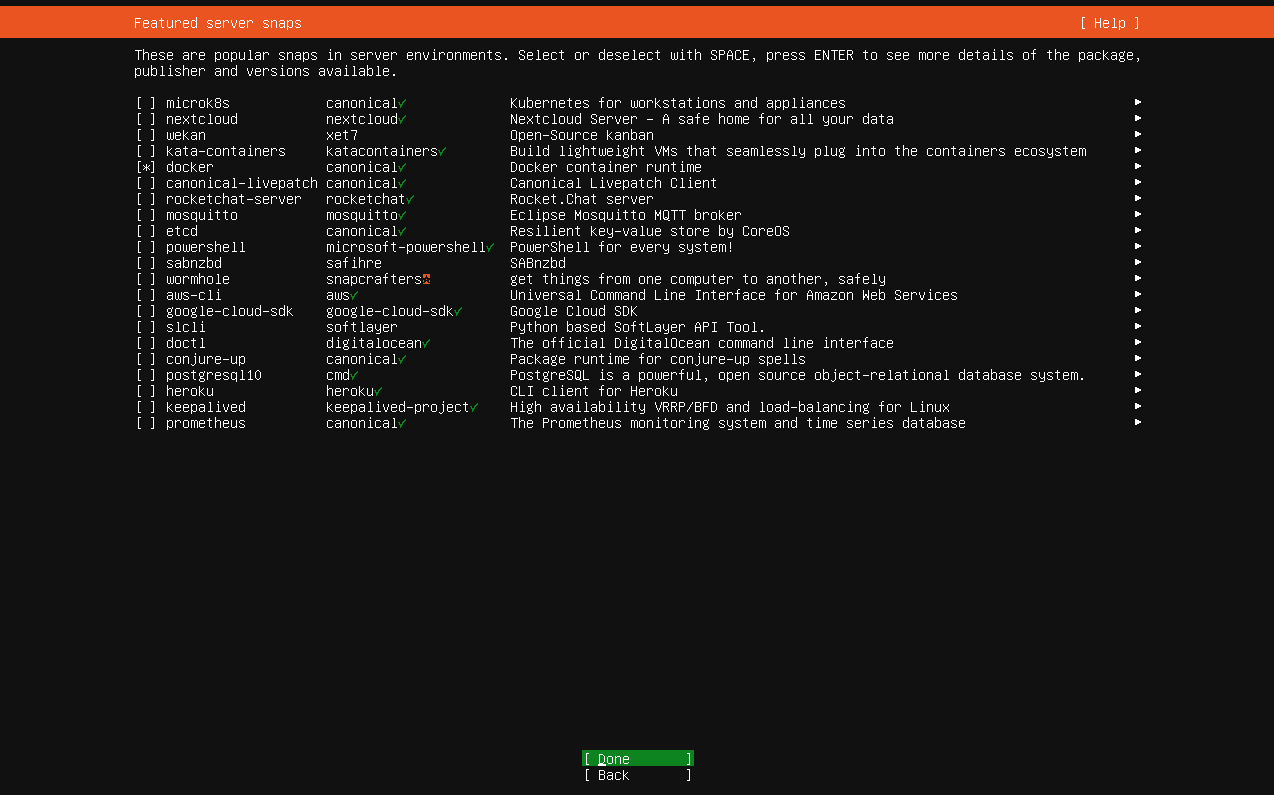
Press Done
https://aredel.com
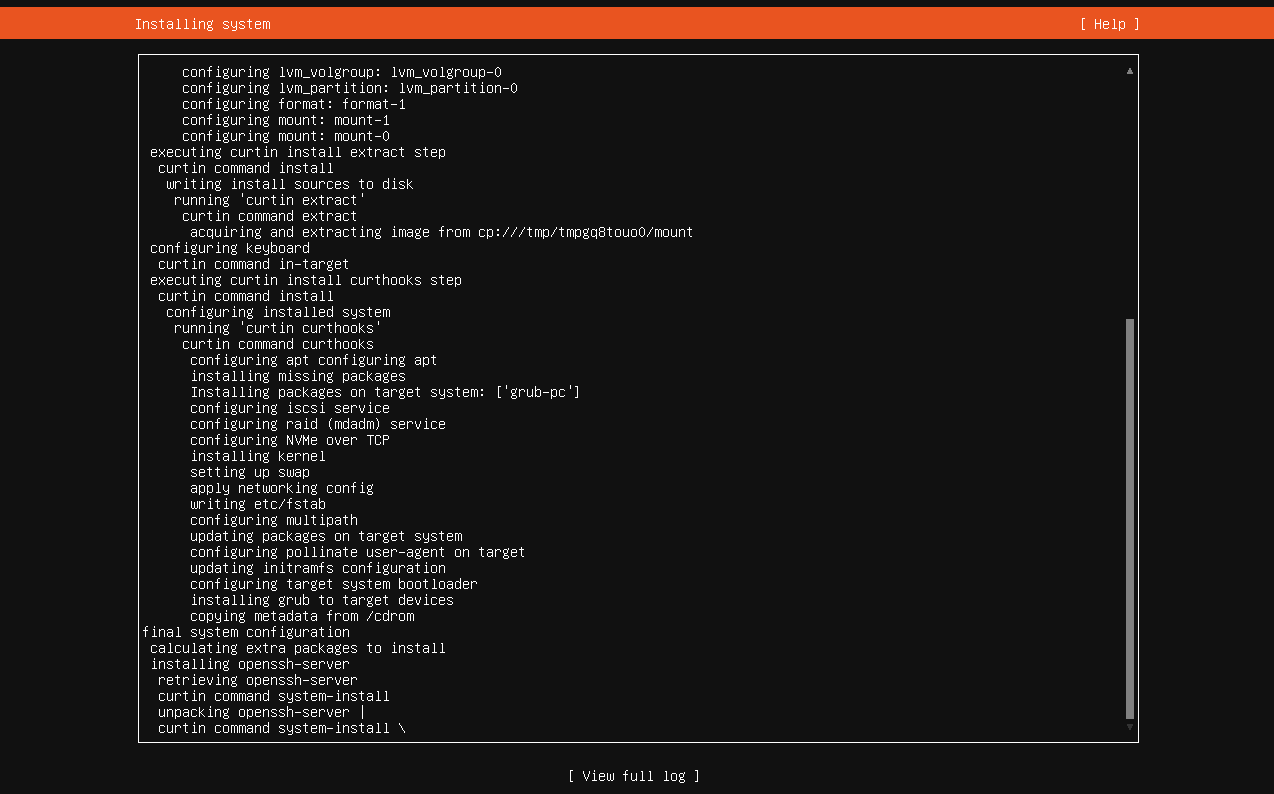
Wait for the installation to finish
https://aredel.com
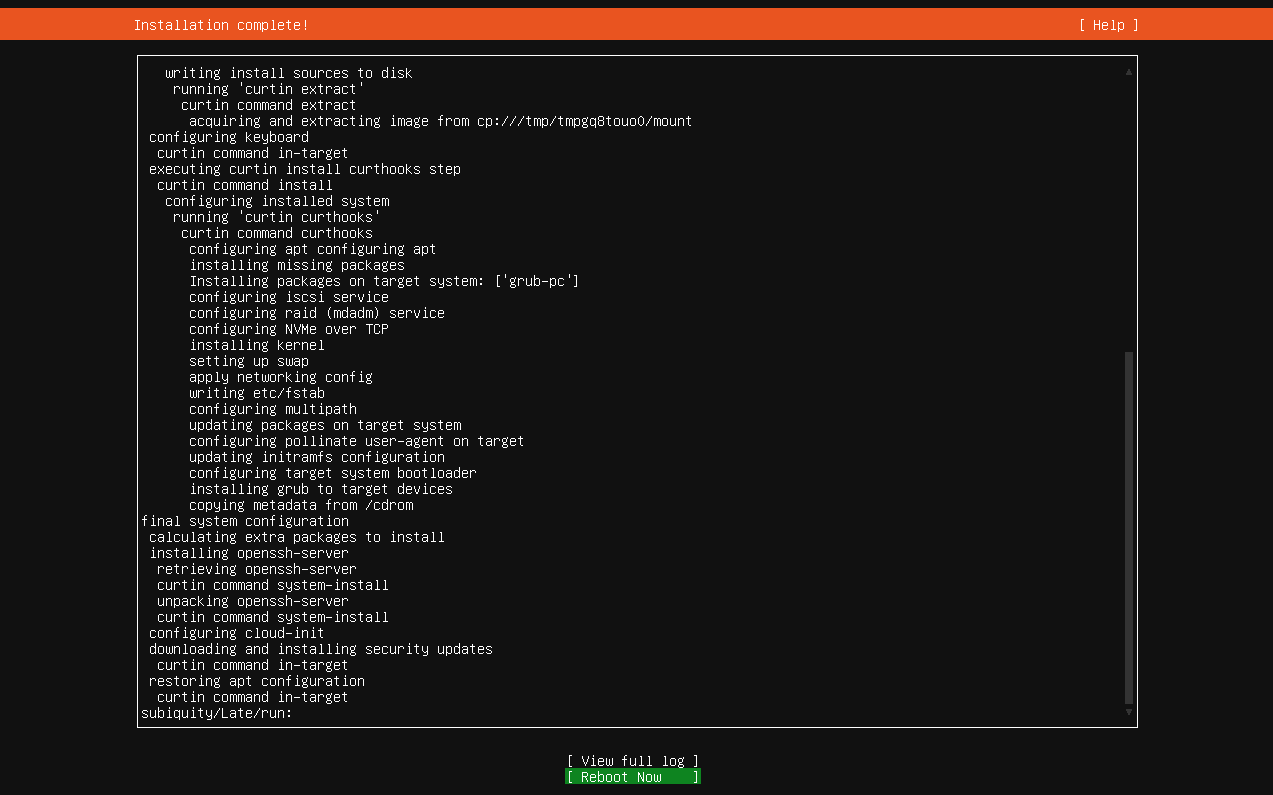
Press Reboot Now
https://aredel.com
Press Enter
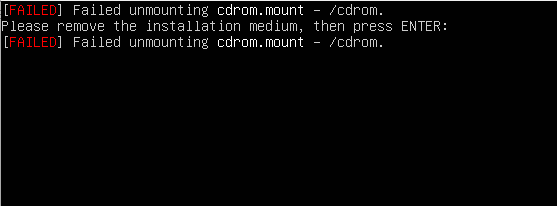
https://aredel.com
Wait for the boot to finish
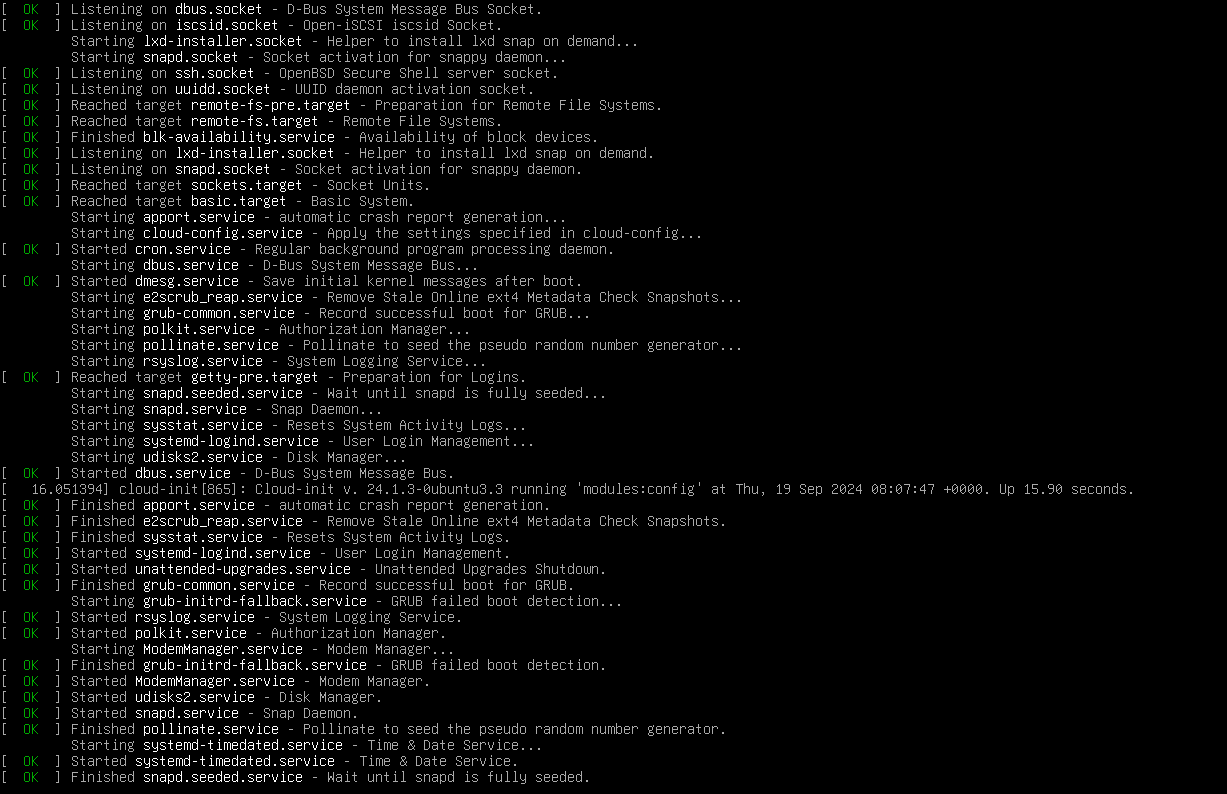
https://aredel.com
Enter the password
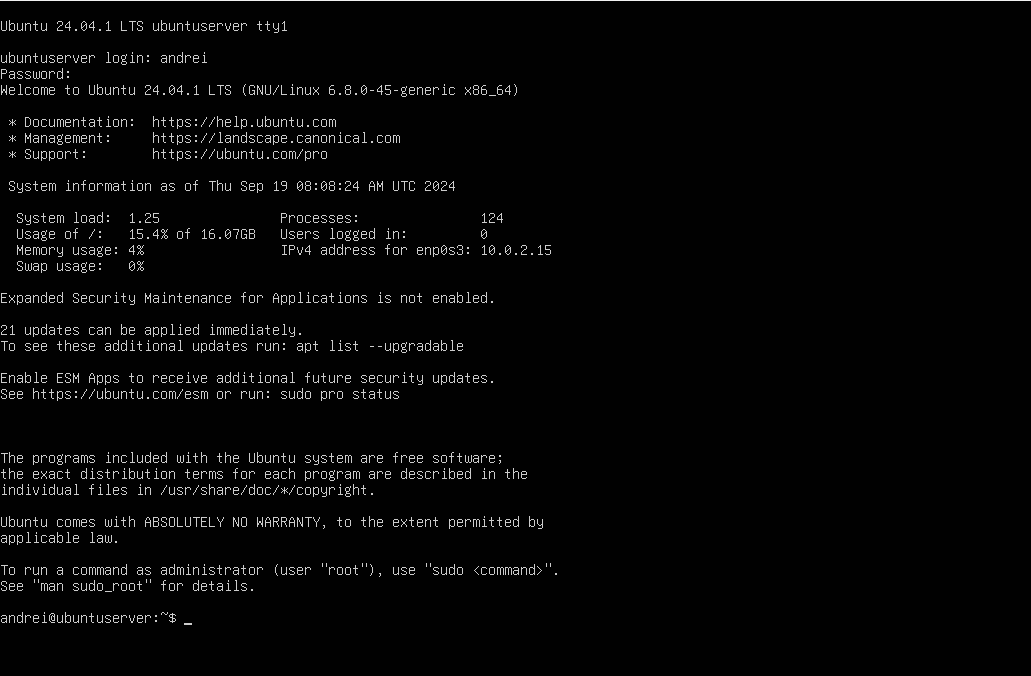
https://aredel.com

Configuration after installation
If the network is available, I do
sudo apt -y update
sudo apt -y upgrade
sudo apt -y install vim curl wget net-tools tree make
sudo apt -y update
Hit:1 http://fi.archive.ubuntu.com/ubuntu focal InRelease Get:2 http://fi.archive.ubuntu.com/ubuntu focal-updates InRelease [114 kB] Get:3 http://fi.archive.ubuntu.com/ubuntu focal-backports InRelease [101 kB] Get:4 http://fi.archive.ubuntu.com/ubuntu focal-updates/main amd64 Packages [1 175 kB] Get:5 http://security.ubuntu.com/ubuntu focal-security InRelease [114 kB] Get:6 http://fi.archive.ubuntu.com/ubuntu focal-updates/main i386 Packages [527 kB] Get:7 http://fi.archive.ubuntu.com/ubuntu focal-updates/main amd64 DEP-11 Metadata [282 kB] Get:8 http://fi.archive.ubuntu.com/ubuntu focal-updates/universe amd64 Packages [853 kB] Get:9 http://fi.archive.ubuntu.com/ubuntu focal-updates/universe i386 Packages [631 kB] Get:10 http://fi.archive.ubuntu.com/ubuntu focal-updates/universe amd64 DEP-11 Metadata [351 kB] Get:11 http://fi.archive.ubuntu.com/ubuntu focal-updates/multiverse amd64 DEP-11 Metadata [940 B] Get:12 http://fi.archive.ubuntu.com/ubuntu focal-backports/universe amd64 DEP-11 Metadata [10,3 kB] Get:13 http://security.ubuntu.com/ubuntu focal-security/main amd64 DEP-11 Metadata [27,6 kB] Get:14 http://security.ubuntu.com/ubuntu focal-security/universe amd64 DEP-11 Metadata [61,0 kB] Get:15 http://security.ubuntu.com/ubuntu focal-security/multiverse amd64 DEP-11 Metadata [2 464 B] Fetched 4 250 kB in 2s (2 557 kB/s) Reading package lists... Done Building dependency tree Reading state information... Done 2 packages can be upgraded. Run 'apt list --upgradable' to see them.
Then you can inspect the network interfaces
ip a
And move on to network configuration
Article author: Andrei Olegovich