Microsoft Word: headings and superscript
This guide covers useful Word basics: applying heading styles, showing the Navigation Pane, and entering superscript text.
Create a heading
Select the text you want to use as a heading, then press:
Ctrl + Alt + 1
This applies the Heading 1 style. The heading should appear in the Navigation Pane on the left. If the pane is hidden, open View and enable Navigation Pane.

You can also select the text and choose Heading 1 from the Styles gallery. Choose Heading 2, 3, or another level to create a nested outline.
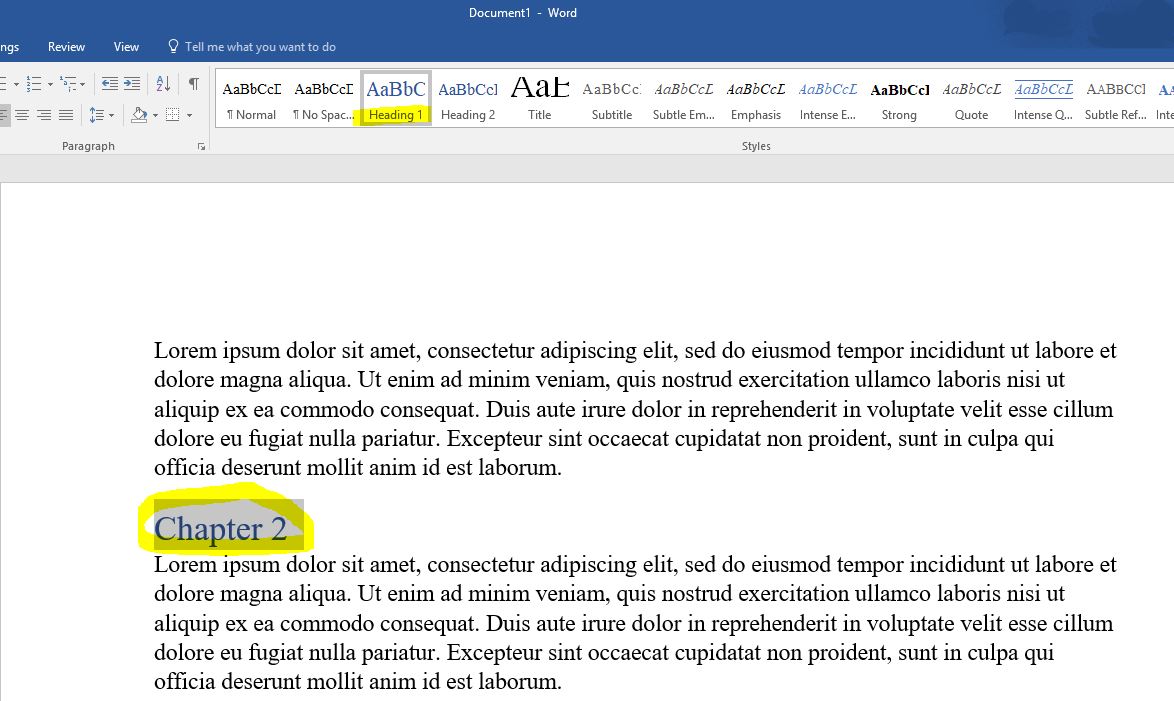
Apply a heading level not shown
If the Styles gallery does not show the level you need, select the text and use the keyboard shortcut. For Heading 2, press:
Ctrl + Alt + 2
Type a superscript in Word
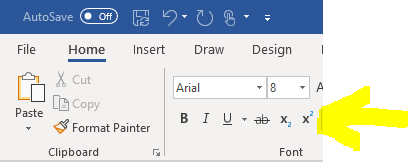
Use the superscript button on the Home tab, or press Ctrl + Shift + =.
Article author: Arthur Isaev