virtualenv Python
Introduction
virtualenv is a tool for isolating projects from each other.
You can create projects with different installed packages, different versions of Python, Pip and so on.
It is most often used for two purposes:
First: to write and test code that must work in different conditions.
For example, you need a version of the program for Python 2.7 and for Python 3.8.
Second: not to «spoil» the installed system Python by turning it into a mess of a bunch of different
packages.
If you need to set up virtualenv on hosting,
the Beget instructions
To check whether virtualenv is installed or not, run
virtualenv --version
If as a result you see something similar, you can continue. Your version may differ from 20.0.21; that is normal.
virtualenv 20.0.21 from c:\users\andrei\appdata\local\programs\python\python38-32\lib\site-packages\virtualenv\__init__.py
If as a result you got a message that the command is unknown, read the article «Installing virtualenv on Windows and Linux

Create a new virtual environment
Let us create the directory in which we will store virtual environments.
cd ~
mkdir virtualenvs
cd virtualenvs
Let us create a new virtual environment, which we will call test_env
virtualenv test_env
Or, if we want to explicitly state that the virtual environment should be created for Python3.
virtualenv -p python3 test_env
On my machine it is created for Python3 by default, but on your system this may not be the case, so the second option is preferable.
created virtual environment CPython3.8.2.final.0-32 in 1410ms creator CPython3Windows(dest=C:\Users\Andrei\virtualenvs\test_env, clear=False, global=False) seeder FromAppData(download=False, pip=latest, setuptools=latest, wheel=latest, via=copy, app_data_dir=C:\Users\Andrei\AppData\Local\pypa\virtualenv\seed-app-data\v1.0.1) activators BashActivator,BatchActivator,FishActivator,PowerShellActivator,PythonActivator,XonshActivator
Choosing a Python version for the environment
To create an environment with a specific Python version use the command with the version specified.
For this to work you need to have Python of that version installed
virtualenv --python=/usr/bin/python3.6 python36
What the environment consists of
Let us go inside test_env and see what is there
cd test_env
dir
Mode LastWriteTime Length Name ---- ------------- ------ ---- d----- 6/5/2020 9:35 PM Lib d----- 6/5/2020 9:35 PM Scripts -a---- 6/5/2020 9:35 PM 42 .gitignore -a---- 6/5/2020 9:35 PM 421 pyvenv.cfg
cd test_env
dir
The Scripts directory in Linux will be called bin.
Let us go there and study the contents.
cd Scripts
dir
Mode LastWriteTime Length Name ---- ------------- ------ ---- -a---- 6/5/2020 9:35 PM 2313 activate -a---- 6/5/2020 9:35 PM 1069 activate.bat -a---- 6/5/2020 9:35 PM 3179 activate.fish -a---- 6/5/2020 9:35 PM 1815 activate.ps1 -a---- 6/5/2020 9:35 PM 1216 activate.xsh -a---- 6/5/2020 9:35 PM 1225 activate_this.py -a---- 6/5/2020 9:35 PM 529 deactivate.bat -a---- 6/5/2020 9:35 PM 97159 easy_install-3.8.exe -a---- 6/5/2020 9:35 PM 97159 easy_install.exe -a---- 6/5/2020 9:35 PM 97159 easy_install3.exe -a---l 6/5/2020 9:35 PM 0 libcrypto-1_1.dll -a---l 6/5/2020 9:35 PM 0 libffi-7.dll -a---l 6/5/2020 9:35 PM 0 libssl-1_1.dll -a---- 6/5/2020 9:35 PM 97150 pip-3.8.exe -a---- 6/5/2020 9:35 PM 97150 pip.exe -a---- 6/5/2020 9:35 PM 97150 pip3.8.exe -a---- 6/5/2020 9:35 PM 97150 pip3.exe -a---- 6/5/2020 9:35 PM 25 pydoc.bat -a---l 6/5/2020 9:35 PM 0 pyexpat.pyd -a---l 6/5/2020 9:35 PM 0 python.exe -a---l 6/5/2020 9:35 PM 0 python3.dll -a---l 6/5/2020 9:35 PM 0 python38.dll -a---l 6/5/2020 9:35 PM 0 pythonw.exe -a---l 6/5/2020 9:35 PM 0 select.pyd -a---l 6/5/2020 9:35 PM 0 sqlite3.dll -a---l 6/5/2020 9:35 PM 0 tcl86t.dll -a---l 6/5/2020 9:35 PM 0 tk86t.dll -a---l 6/5/2020 9:35 PM 0 unicodedata.pyd -a---l 6/5/2020 9:35 PM 0 vcruntime140.dll -a---- 6/5/2020 9:35 PM 97137 wheel-3.8.exe -a---- 6/5/2020 9:35 PM 97137 wheel.exe -a---- 6/5/2020 9:35 PM 97137 wheel3.exe -a---l 6/5/2020 9:35 PM 0 winsound.pyd -a---l 6/5/2020 9:35 PM 0 _asyncio.pyd -a---l 6/5/2020 9:35 PM 0 _bz2.pyd -a---l 6/5/2020 9:35 PM 0 _ctypes.pyd -a---l 6/5/2020 9:35 PM 0 _ctypes_test.pyd -a---l 6/5/2020 9:35 PM 0 _decimal.pyd -a---l 6/5/2020 9:35 PM 0 _elementtree.pyd -a---l 6/5/2020 9:35 PM 0 _hashlib.pyd -a---l 6/5/2020 9:35 PM 0 _lzma.pyd -a---l 6/5/2020 9:35 PM 0 _msi.pyd -a---l 6/5/2020 9:35 PM 0 _multiprocessing.pyd -a---l 6/5/2020 9:35 PM 0 _overlapped.pyd -a---l 6/5/2020 9:35 PM 0 _queue.pyd -a---l 6/5/2020 9:35 PM 0 _socket.pyd -a---l 6/5/2020 9:35 PM 0 _sqlite3.pyd -a---l 6/5/2020 9:35 PM 0 _ssl.pyd -a---l 6/5/2020 9:35 PM 0 _testbuffer.pyd -a---l 6/5/2020 9:35 PM 0 _testcapi.pyd -a---l 6/5/2020 9:35 PM 0 _testconsole.pyd -a---l 6/5/2020 9:35 PM 0 _testimportmultiple.pyd -a---l 6/5/2020 9:35 PM 0 _testmultiphase.pyd -a---l 6/5/2020 9:35 PM 0 _tkinter.pyd
Let us pay attention to the scripts
activate,
activate.bat and
activate.ps1
we will need one of them, and which one depends on your environment.
Under
Linux
you will need
activate
Under
Windows
activate.bat for a regular command line or
activate.ps1 for
PowerShell.
not all packages work the same, some do not support
PowerShell, but
some actions are easier to do in it.
Virtual environments in PyCharm
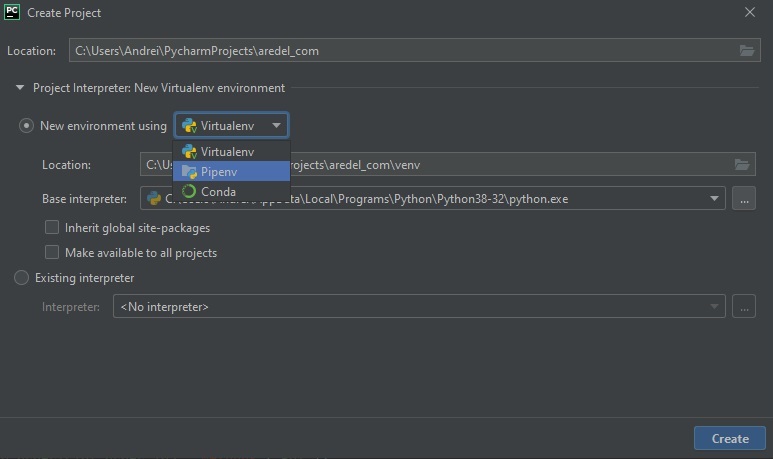
You can choose which tool to use for working with virtual environments.
This is done at the stage of creating the project
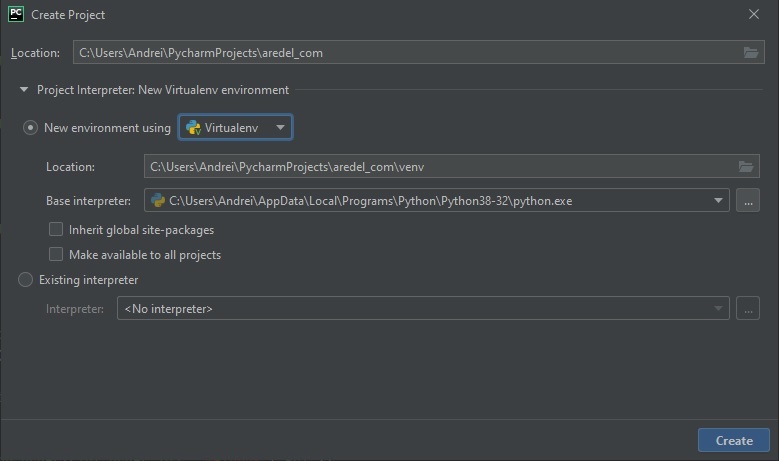
By default the following are available: virtualenv, pipenv and conda
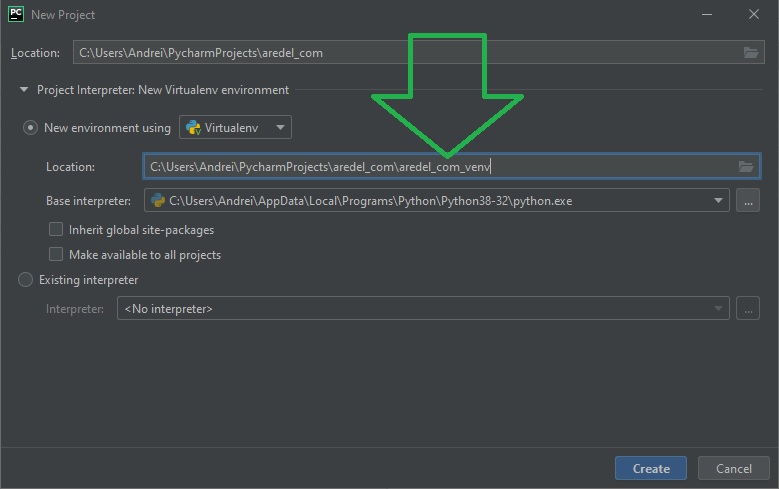
The name for the environment is set here:
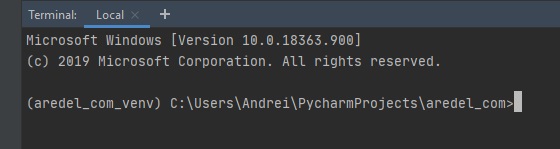
You can see it after creating the project by launching the terminal
Article author: Andrei Olegovich