The camera on a Lenovo laptop does not work
Introduction
There are several reasons why the camera may not work. You have to go from the simplest ones to the most complex.
First of all check that the privacy shutter is not closed. Then find the camera off button on the keyboard, usually it is F8.
Press
CTRL + F8 or Fn + F8
If these simple methods did not help, we go on to the next step.
If in every application you see the following picture while the camera indicator is on, try the method that helped me.

How to turn the camera on
Open the Lenovo Vantage application.
You can find it in the list of applications, or press the Windows key and type Lenovo Vantage in the search
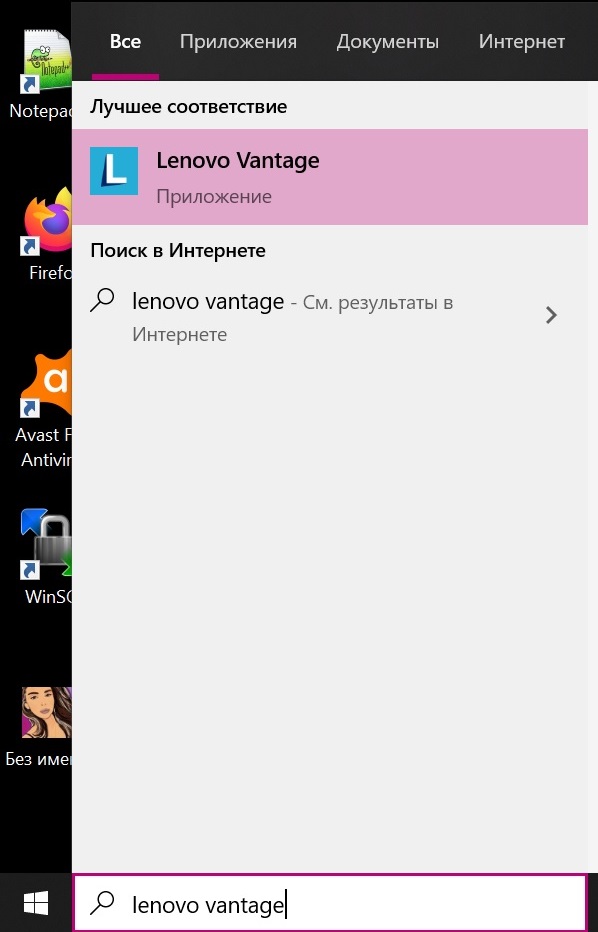
The application window opens. If it opened as in the next image, click the icon with three horizontal lines (the hamburger).
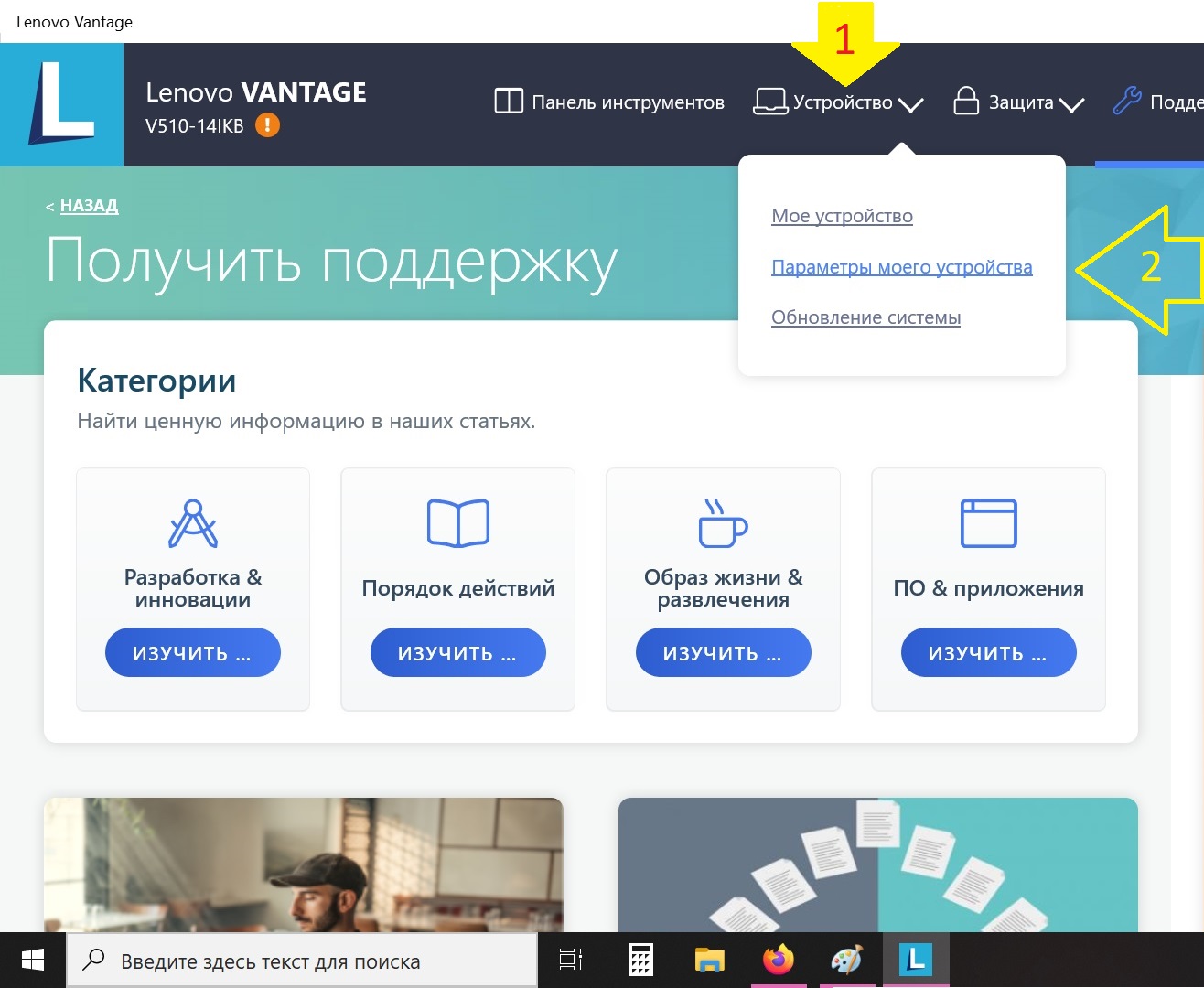
Find Device → My Device Settings

If you maximised the window as I do, the application will look like the next picture.
Find Device → My Device Settings
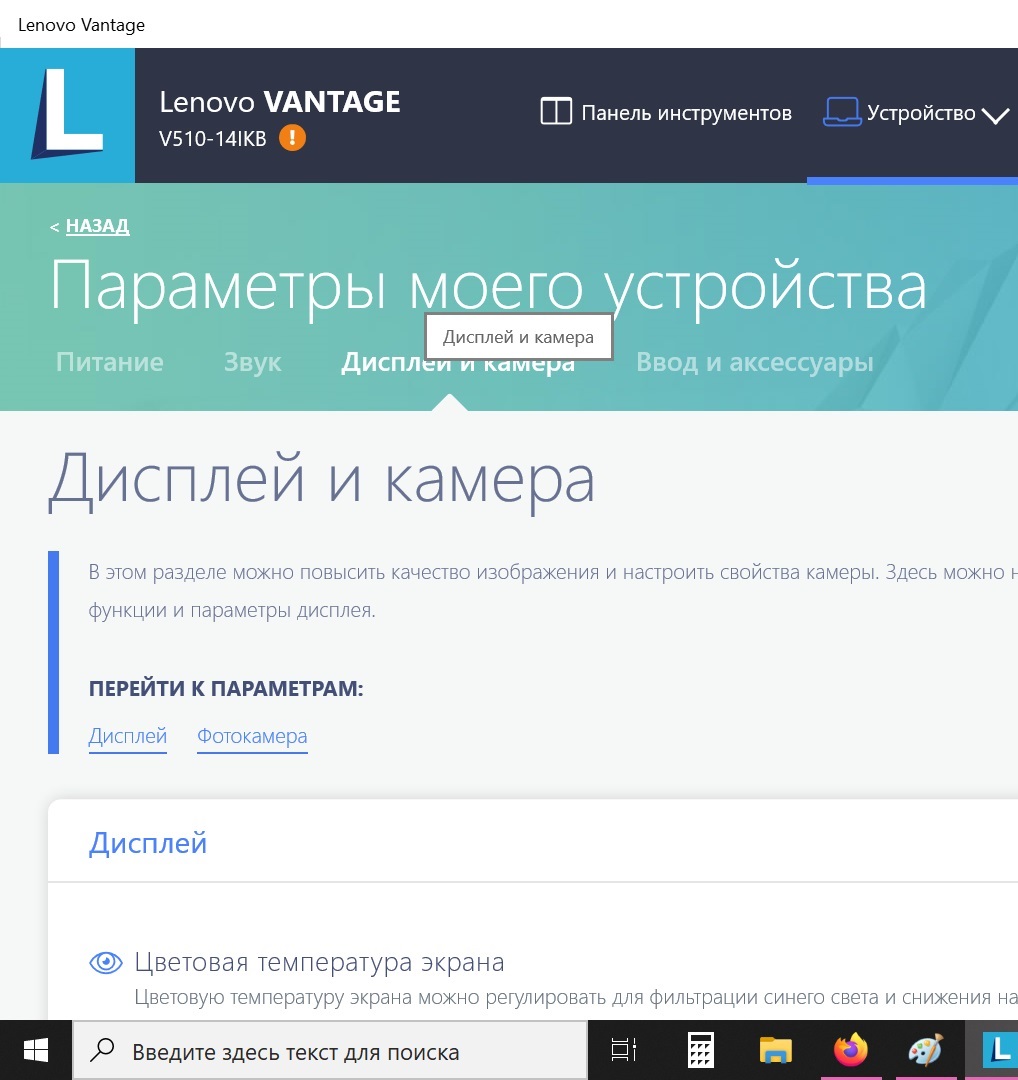
Go to the section Display & Camera (Display & Camera)
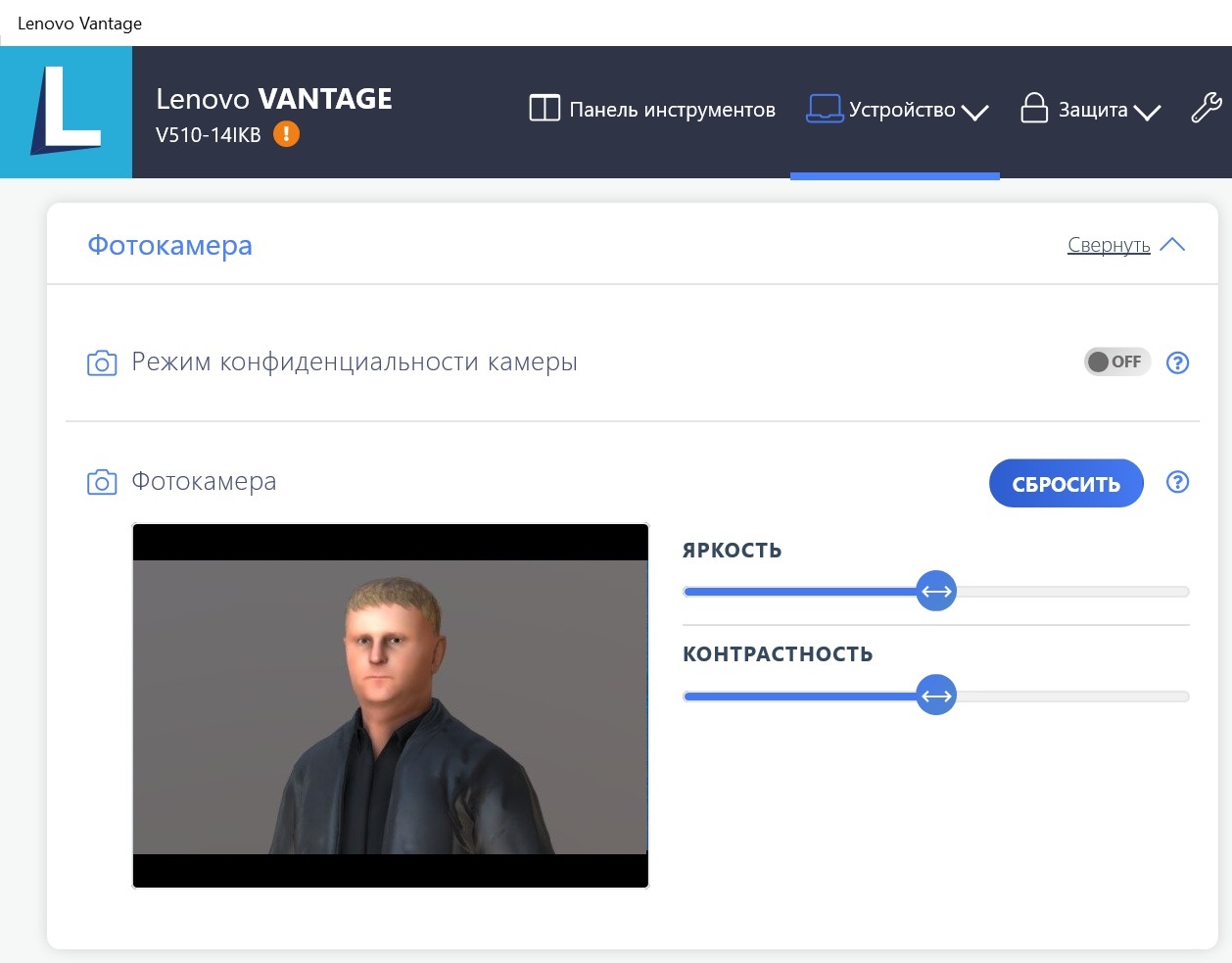
You need Camera Privacy Mode (Camera Privacy Mode) to be set to OFF as in the picture below
If this method did not help you can do the following at your own risk: go to the Lenovo site and download the Lenovo Settings Dependency Package from there and reinstall it.

Another option is to open Device Manager and install another driver for the camera by hand
You can buy a new Lenovo laptop in the shops:
Entering the BIOS
The most popular way to enter the BIOS on Lenovo laptops is to hold Fn and press F2 you have to do it at the very beginning of the laptop boot.
Article author: Andrei Olegovich