Python: difficulties, nuances, details.
Many difficulties arise for beginners because nobody explained to them about
the virtual environment
.
You can save yourself a headache by reading the article
virtualenv
or
venv
Several versions of Python are installed
So, you have installed python, pipe, pipenv, requests and a lot of other things, but
suddenly discovered that the computer no longer has one but several versions of python.
For example, you have versions 2.7 and 3.5 installed.
When you run python, you want the latest version to work, but,
for some reason version 2.7 works.
Let us find out how to sort out this situation.
Python -V and which python
Let us find out the version of python that is invoked by the command python with the -V flag
python -V
Python 2.7.18rcl
A useful command you can run to find out where your Python is located is which
which python
/usr/bin/python
As you can see, on my Ubuntu Python is located in /usr/bin/python and has version 2.7.18rcl
The third Python is installed as well; checking the version and directory is just as easy
python3 -V
Python 3.8.5
which python3
/usr/bin/python3
To sum up: the second Python is invoked by the command python and the third Python by the command python3.
Usually Python is installed in the directory /usr/bin
Another way to get this information is to use the type command
type python3
python3 is hashed (/usr/bin/python3)
type python
python3 is hashed (/usr/bin/python)
The next way is through sys.executable
here, for a change, I set up an alias in .bashrc and now the python command is equivalent to python3
python
Python 3.8.5 (default, Jul 28 2020, 12:59:40) [GCC 9.3.0] on linux Type "help", "copyright", "credits" or "license" for more information.
>>> import sys
>>> sys.executable
'/usr/bin/python3'
If you already had a third Python, for example 3.8.5, and you downloaded and
installed a later version yourself, for example 3.9.1 as in the
instructions
then you will have two different third Pythons.
You can verify this by examining the directory
/usr/local/bin/
ls -la /usr/local/bin/
total 21648 drwxr-xr-x 2 root root 4096 Feb 4 11:08 . drwxr-xr-x 10 root root 4096 Jul 31 2020 .. lrwxrwxrwx 1 root root 8 Feb 4 11:08 2to3 -> 2to3-3.9 -rwxr-xr-x 1 root root 101 Feb 4 11:08 2to3-3.9 -rwxr-xr-x 1 root root 238 Feb 4 11:08 easy_install-3.9 lrwxrwxrwx 1 root root 7 Feb 4 11:08 idle3 -> idle3.9 -rwxr-xr-x 1 root root 99 Feb 4 11:08 idle3.9 -rwxr-xr-x 1 root root 229 Feb 4 11:08 pip3 -rwxr-xr-x 1 root root 229 Feb 4 11:08 pip3.9 lrwxrwxrwx 1 root root 8 Feb 4 11:08 pydoc3 -> pydoc3.9 -rwxr-xr-x 1 root root 84 Feb 4 11:08 pydoc3.9 lrwxrwxrwx 1 root root 9 Feb 4 11:08 python3 -> python3.9 -rwxr-xr-x 1 root root 22127472 Feb 4 11:05 python3.9 -rwxr-xr-x 1 root root 3087 Feb 4 11:08 python3.9-config lrwxrwxrwx 1 root root 16 Feb 4 11:08 python3-config -> python3.9-config
which python3
/usr/local/bin/python3
which python3.9
/usr/local/bin/python3.9
In such a situation you need to specify the full version python3.9 explicitly to run programs, or set up alias
PATH
If neither the pyhon nor the python3 command works, it is sometimes useful to check the PATH variable
echo $PATH
/home/andrei/.local/bin:/home/andrei/bin:/usr/local/sbin:/usr/local/bin:/usr/sbin:/usr/bin:/sbin:/bin:/usr/games:/usr/local/games:/snap/bin
As you can verify, my directory /usr/bin is in PATH
If you need to add a directory to PATH, read the article
«PATH in Linux»
or the article
«PATH in Windows»
It is important to understand that if each of the directories mentioned in PATH has some Python installed, the one that runs
will be the one in the first directory.
If you need to use Python from a particular directory, you need to specify its path. In this
case this path does not have to be in PATH
/usr/bin/python3
Python 3.8.5 (default, Jul 28 2020, 12:59:40) [GCC 9.3.0] on linux Type "help", "copyright", "credits" or "license" for more information. >>>
>>> means that Python is in interactive mode.
Pip
Let us find out where pip
pip -V
/home/andrei/.local/lib/python2.7/site-packages (python 2.7)
As you can see, pip points to the python2.7 directory, so everything we installed before with the command pip install went to version 2.7 while version 3.5 has neither pipenv nor requests and, for example, testing interfaces will not work with it
If you ran pip -V and got in response
Command 'pip' not found, but there are 18 similar ones.
Look at what
pip3 -V
On my Ubuntu the result is like this
pip 20.0.2 from /usr/lib/python3/dist-packages/pip (python 3.8)
You can see where pip installed a package with the pip show command
Let us check where the requests module is installed, which will be useful to us for working with
REST API
pip show requests
Name: requests Version: 2.22.0 Summary: Python HTTP for Humans. Home-page: http://python-requests.org Author: Kenneth Reitz Author-email: me@kennethreitz.org License: Apache 2.0 Location: /usr/lib/python3/dist-packages Requires: Required-by: yandextank, netort, influxdb
alias
If you work in Linux you can set alias python=python3
Install an additional Python version
If you deliberately want to install a particular Python version in addition to the already existing execute
Where the various Python versions are installed
Look through the contents of /usr/local/bin
ls -la /usr/local/bin
The result on my PC shows that version 3.5 is located here
total 23620
drwxr-xr-x 0 root root 512 Mar 19 18:16 .
drwxr-xr-x 0 root root 512 Mar 30 2017 ..
lrwxrwxrwx 1 root root 8 Mar 19 18:16 2to3 -> 2to3-3.5
-rwxrwxrwx 1 root root 101 Mar 19 18:16 2to3-3.5
lrwxrwxrwx 1 root root 7 Mar 19 18:16 idle3 -> idle3.5
-rwxrwxrwx 1 root root 99 Mar 19 18:16 idle3.5
lrwxrwxrwx 1 root root 8 Mar 19 18:16 pydoc3 -> pydoc3.5
-rwxrwxrwx 1 root root 84 Mar 19 18:16 pydoc3.5
lrwxrwxrwx 1 root root 9 Mar 19 18:16 python3 -> python3.5
-rwxr-xr-x 2 root root 12090016 Mar 19 18:13 python3.5
lrwxrwxrwx 1 root root 17 Mar 19 18:16 python3.5-config -> python3.5m-config
-rwxr-xr-x 2 root root 12090016 Mar 19 18:13 python3.5m
-rwxr-xr-x 1 root root 3071 Mar 19 18:16 python3.5m-config
lrwxrwxrwx 1 root root 16 Mar 19 18:16 python3-config -> python3.5-config
lrwxrwxrwx 1 root root 10 Mar 19 18:16 pyvenv -> pyvenv-3.5
-rwxrwxrwx 1 root root 236 Mar 19 18:16 pyvenv-3.5
Version 2.7 is most likely here /home/andrei/.local/lib/
ls -la /home/andrei/.local/lib/python2.7/site-packages/
The result on my PC
total 1304
drwx------ 0 andrei andrei 512 Mar 19 13:19 .
drwx------ 0 andrei andrei 512 Mar 19 13:19 ..
drwxrwxrwx 0 andrei andrei 512 Mar 19 13:19 asn1crypto
drwxrwxrwx 0 andrei andrei 512 Mar 19 13:19 asn1crypto-0.24.0.dist-info
drwxrwxrwx 0 andrei andrei 512 Mar 19 13:19 certifi
drwxrwxrwx 0 andrei andrei 512 Mar 19 13:19 certifi-2018.1.18.dist-info
drwxrwxrwx 0 andrei andrei 512 Mar 19 13:19 cffi
drwxrwxrwx 0 andrei andrei 512 Mar 19 13:19 cffi-1.11.5.dist-info
-rwxrwxrwx 1 andrei andrei 783672 Mar 19 13:19 _cffi_backend.so
drwxrwxrwx 0 andrei andrei 512 Mar 19 13:19 chardet
drwxrwxrwx 0 andrei andrei 512 Mar 19 13:19 chardet-3.0.4.dist-info
-rw-rw-rw- 1 andrei andrei 10826 Mar 19 13:19 clonevirtualenv.py
-rw-rw-rw- 1 andrei andrei 11094 Mar 19 13:19 clonevirtualenv.pyc
drwxrwxrwx 0 andrei andrei 512 Mar 19 13:19 cryptography
drwxrwxrwx 0 andrei andrei 512 Mar 19 13:19 cryptography-2.2.dist-info
-rw-rw-rw- 1 andrei andrei 126 Mar 19 13:19 easy_install.py
-rw-rw-rw- 1 andrei andrei 315 Mar 19 13:19 easy_install.pyc
drwxrwxrwx 0 andrei andrei 512 Mar 19 13:19 enum
drwxrwxrwx 0 andrei andrei 512 Mar 19 13:19 enum34-1.1.6.dist-info
drwxrwxrwx 0 andrei andrei 512 Mar 19 13:19 idna
drwxrwxrwx 0 andrei andrei 512 Mar 19 13:19 idna-2.6.dist-info
drwxrwxrwx 0 andrei andrei 512 Mar 19 13:19 ipaddress-1.0.19.dist-info
-rw-rw-rw- 1 andrei andrei 79852 Mar 19 13:19 ipaddress.py
-rw-rw-rw- 1 andrei andrei 75765 Mar 19 13:19 ipaddress.pyc
drwxrwxrwx 0 andrei andrei 512 Mar 19 13:19 .libs_cffi_backend
drwxrwxrwx 0 andrei andrei 512 Mar 19 13:19 OpenSSL
drwxrwxrwx 0 andrei andrei 512 Mar 19 13:19 ordereddict-1.1.dist-info
-rw-rw-rw- 1 andrei andrei 4221 Mar 19 13:19 ordereddict.py
-rw-rw-rw- 1 andrei andrei 4388 Mar 19 13:19 ordereddict.pyc
drwxrwxrwx 0 andrei andrei 512 Mar 19 13:19 pathlib-1.0.1.dist-info
-rw-rw-rw- 1 andrei andrei 41481 Mar 19 13:19 pathlib.py
-rw-rw-rw- 1 andrei andrei 43650 Mar 19 13:19 pathlib.pyc
drwxrwxrwx 0 andrei andrei 512 Mar 19 13:19 pip
drwxrwxrwx 0 andrei andrei 512 Mar 19 13:19 pip-9.0.2.dist-info
drwxrwxrwx 0 andrei andrei 512 Mar 19 13:19 pipenv
drwxrwxrwx 0 andrei andrei 512 Mar 19 13:19 pipenv-11.8.2.dist-info
drwxrwxrwx 0 andrei andrei 512 Mar 19 13:19 pkg_resources
drwxrwxrwx 0 andrei andrei 512 Mar 19 13:19 pycparser
drwxrwxrwx 0 andrei andrei 512 Mar 19 13:19 pycparser-2.18.dist-info
drwxrwxrwx 0 andrei andrei 512 Mar 19 13:19 pyOpenSSL-17.5.0.dist-info
drwxrwxrwx 0 andrei andrei 512 Mar 19 13:19 requests
drwxrwxrwx 0 andrei andrei 512 Mar 19 13:19 requests-2.18.4.dist-info
drwxrwxrwx 0 andrei andrei 512 Mar 19 13:19 setuptools
drwxrwxrwx 0 andrei andrei 512 Mar 19 13:19 setuptools-39.0.1.dist-info
drwxrwxrwx 0 andrei andrei 512 Mar 19 13:19 six-1.11.0.dist-info
-rw-rw-rw- 1 andrei andrei 30888 Mar 19 13:19 six.py
-rw-rw-rw- 1 andrei andrei 30210 Mar 19 13:19 six.pyc
drwxrwxrwx 0 andrei andrei 512 Mar 19 13:19 urllib3
drwxrwxrwx 0 andrei andrei 512 Mar 19 13:19 urllib3-1.22.dist-info
drwxrwxrwx 0 andrei andrei 512 Mar 19 13:19 virtualenv-15.1.0.dist-info
drwxrwxrwx 0 andrei andrei 512 Mar 19 13:19 virtualenv_clone-0.3.0.dist-info
-rw-rw-rw- 1 andrei andrei 99021 Mar 19 13:19 virtualenv.py
-rw-rw-rw- 1 andrei andrei 86676 Mar 19 13:19 virtualenv.pyc
drwxrwxrwx 0 andrei andrei 512 Mar 19 13:19 virtualenv_support
There are several ways to work around this problem. First let us look at using the command python3.
python3 -V
Python 3.5.0
As we have just been able to see, the python3 command uses the new Python version.
Let us install pip3
sudo apt install python3-pip
Let us check that it installed into the right directory
pip3 -V
pip 8.1.1 from /usr/lib/python3/dist-packages (python 3.5)
Now let us install pipenv
pip3 install pipenv
I also recommend reading the articles pip , sys.path
Install a package for a specific Python version
If you have several Python versions and need to install some package only for a particular version, let us call it X.X, use the command
pythonX.X -m pip install package_name --user --ignore-installed
Instructions for installing Python on hosting
ModuleNotFoundError: No module named 'urllib2'
The urllib2 module was split into urllib.request and urllib.error
Therefore the line
import urllib2
Must be replaced with
import urllib.request
import urllib.error
TabError: inconsistent use of tabs and spaces in indentation
This error is usually caused by the fact that pressing TAB is not equivalent to three spaces.
You can try replacing all indents with spaces, strictly keeping the number
of spaces equal everywhere it is needed.
ModuleNotFoundError: No module named 'requests'
This error is usually caused by the module requests
not being installed, or being installed but not for the python you ran.
For example, it is installed for python2.6 but not for python3.
You can try installing the requests module. I wrote about this in more detail
in the article Testing with Python.
Because I first encountered this problem precisely while
testing
API
If this problem occurred when using PyCharm
install requests for your project following this
instruction
Go to the project settings by pressing
CTRL + ALT + S
Select the section Project Interpreter
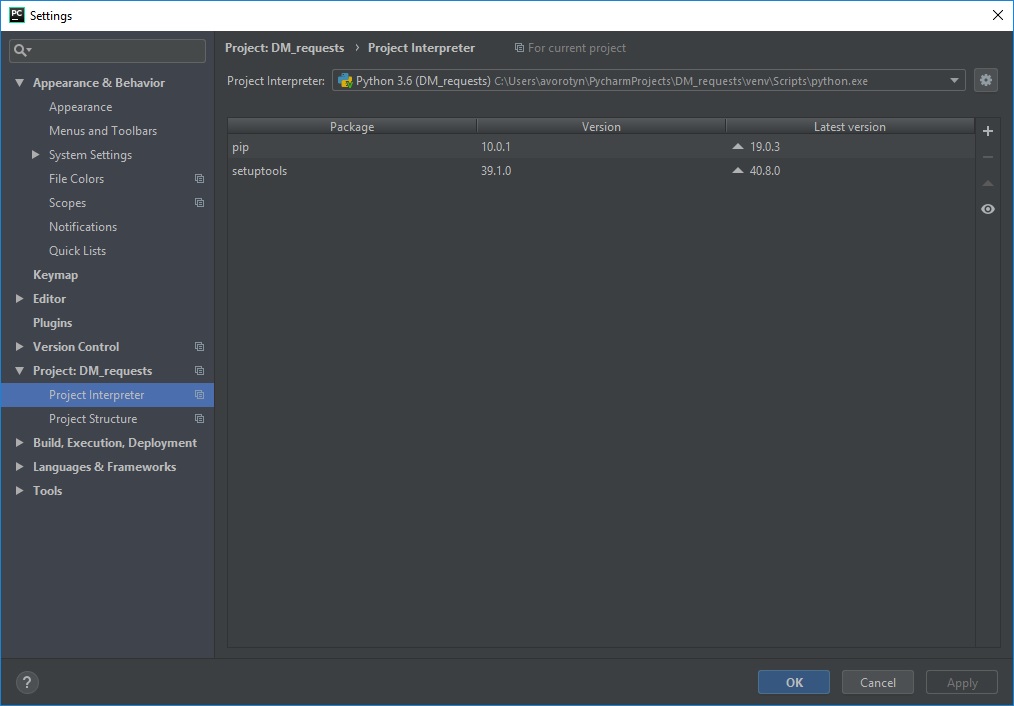
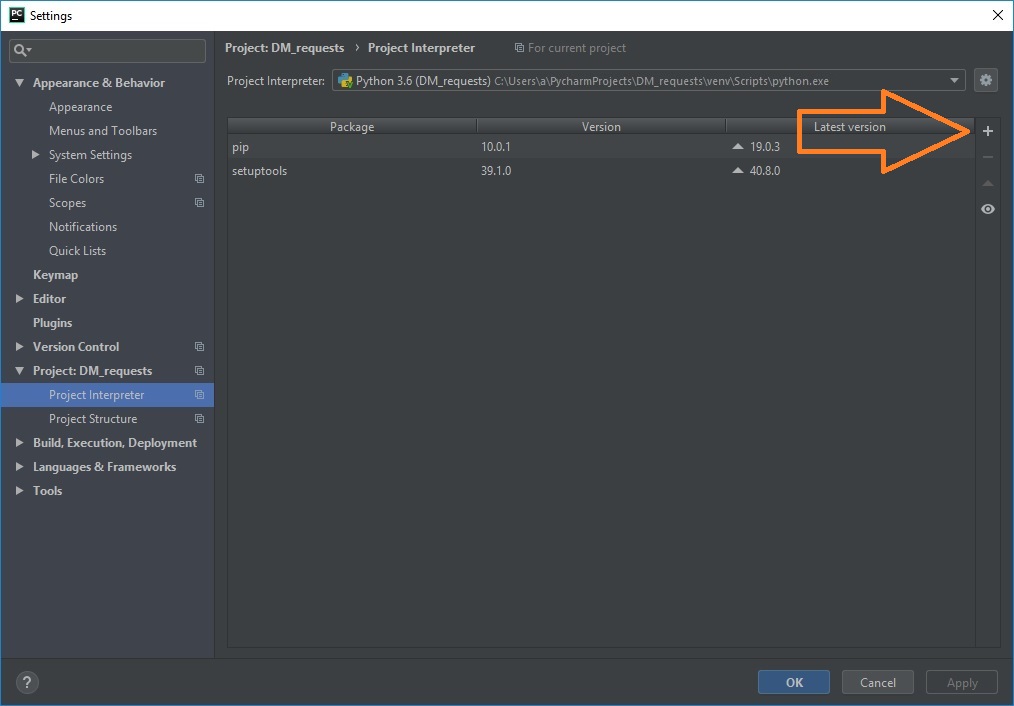
Image to verify: 2 candidates, keep one: /dev/python/issues/img/00108--duplicate-check-01.jpg, /dev/python/issues/img/00108--duplicate-check-02.jpg
Click on the plus in the right part of the screen
Enter the name of the module you need in the search box. In my case it is requests

A window should open Available Packages
Click the button Install Package
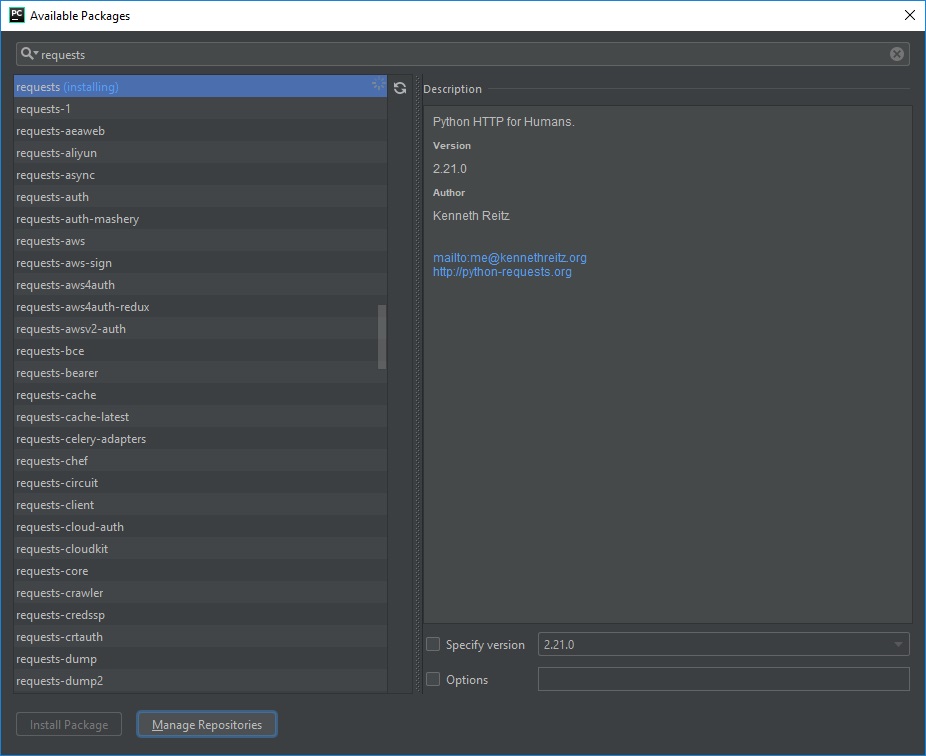
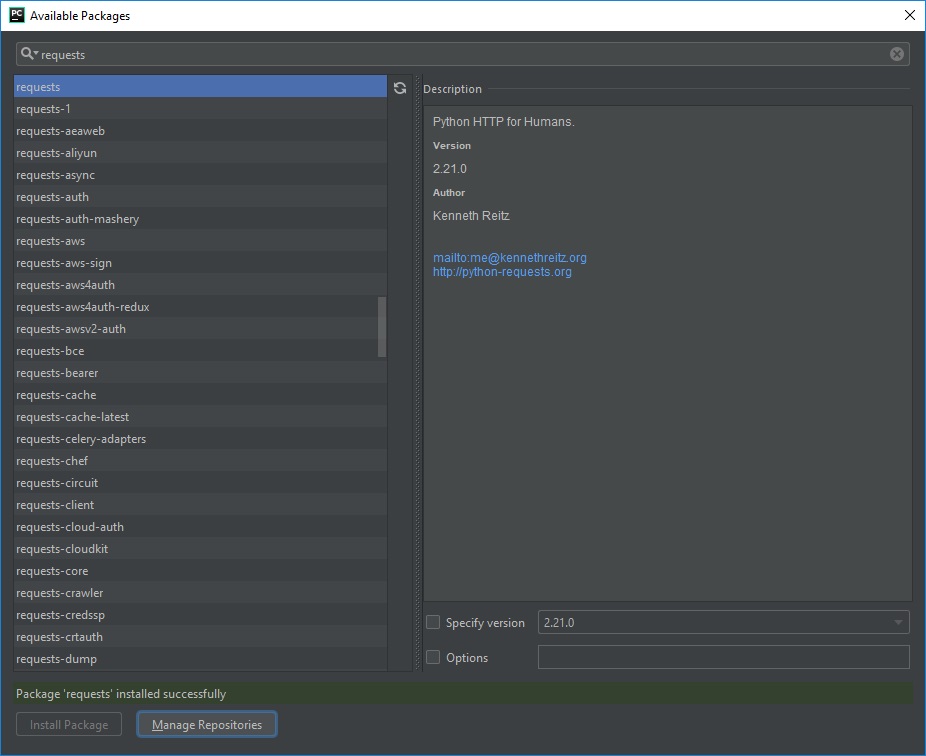
Wait for the installation to finish
SyntaxError: Missing parentheses in call to 'print'
This error usually appears when you try to use print without parentheses in python 3, as it worked in python 2
print data
In python 3 you must use parentheses
print (data)
TypeError: getsockaddrarg: AF_INET address must be tuple, not str
This error usually appears when you put a quote in the wrong place,
specifying where to connect.
The correct option is to pass a tuple, which looks like this:
(ip, port), ip is usually in quotes, the port without
Example ('10.6.0.100', 10000)
sock.connect(('10.6.0.130' ,9090))
The error occurs if you put both the ip and the port in quotes, then a string is passed instead of a tuple, which the interpreter complains about.
sock.connect(('10.6.0.130 ,9090'))
Traceback (most recent call last): File "send.py", line 4, in <module> sock.connect(('10.6.0.130,9090')) TypeError: getsockaddrarg: AF_INET address must be tuple, not str
The virtualenv command does not run
If you have just installed virtualenv, but when trying to run
virtualenv new_env
or
venv new_env
You get something like:
virtualenv : The term 'virtualenv' is not recognized as the name of a cmdlet, function, script file, or operable program. Check the spelling of the name, or if a path was included, verify that the path is correct and try again. At line:1 char:1 + virtualenv juha_env + ~~~~~~~~~~ + CategoryInfo : ObjectNotFound: (virtualenv:String) [], CommandNotFoundException + FullyQualifiedErrorId : CommandNotFoundException
Try
python -m virtualenv new_env
The virtual environment is not activated
First let us look at the case in plain virtualenv, then we will move on to virtualenvwrapper-win
1. virtualenv
You are on Windows and trying to activate your virtual environment, which is called, say, test_env, with the command
test_env\Scripts\activate.bat
And nothing happens
You try
test_env\Scripts\activate.ps1
And you get
.\test_env\Scripts\activate.ps1 : File C:\Users\Andrei\virtualenvs\test_env\Scripts\activate.ps1 cannot be loaded because running scripts is disabled on this system. For more information, see about_Execution_Policies at https:/go.microsoft.com/fwlink/?LinkID=135170. At line:1 char:1 + .\test_env\Scripts\activate.ps1 + ~~~~~~~~~~~~~~~~~~~~~~~~~~~~~~~ + CategoryInfo : SecurityError: (:) [], PSSecurityException + FullyQualifiedErrorId : UnauthorizedAccess
You need to open PowerShell as administrator and run
Set-ExecutionPolicy Unrestricted -Force
And execute once more
test_env\Scripts\activate.ps1
If you cannot run
PowerShell
in administrator mode. For example, if you use the terminal in
Visual Studio Code
Run
Set-ExecutionPolicy -Scope CurrentUser Unrestricted -Force
2. virtualenvwrapper-win
You have installed virtualenvwrapper-win and created a new environment
mkvirtualenv testEnv
created virtual environment CPython3.8.2.final.0-32 in 955ms creator CPython3Windows(dest=C:\Users\Andrei\Envs\testEnv, clear=False, global=False) seeder FromAppData(download=False, pip=latest, setuptools=latest, wheel=latest, via=copy, app_data_dir=C:\Users\Andrei\AppData\Local\pypa\virtualenv\seed-app-data\v1.0.1) activators BashActivator,BatchActivator,FishActivator,PowerShellActivator,PythonActivator,XonshActivator
It is visible in the list of environments
lsvirtualenv
dir /b /ad "C:\Users\Andrei\Envs" ============================================================================== testEnv
And workon sees it
workon
Pass a name to activate one of the following virtualenvs: ============================================================================== testEnv
To activate it, enter
workon testEnv
And nothing happens. Because virtalenvwrapper-win does not work with PowerShell.
You will have to use a regular command prompt or switch to the
Linux subsystem
NameError: name 'psutil' is not defined
NameError: name 'psutil' is not defined
Such errors occur if you have not yet installed some library but have already tried to use it
sudo apt install -y python-psutil
TypeError: unsupported operand type(s) for +: 'range' and 'range'
This error says that you are running code written in Python2 with Python3
Install the latest Python2 version following the
instruction
and run the code with the second Python
Article author: Andrei Olegovich